

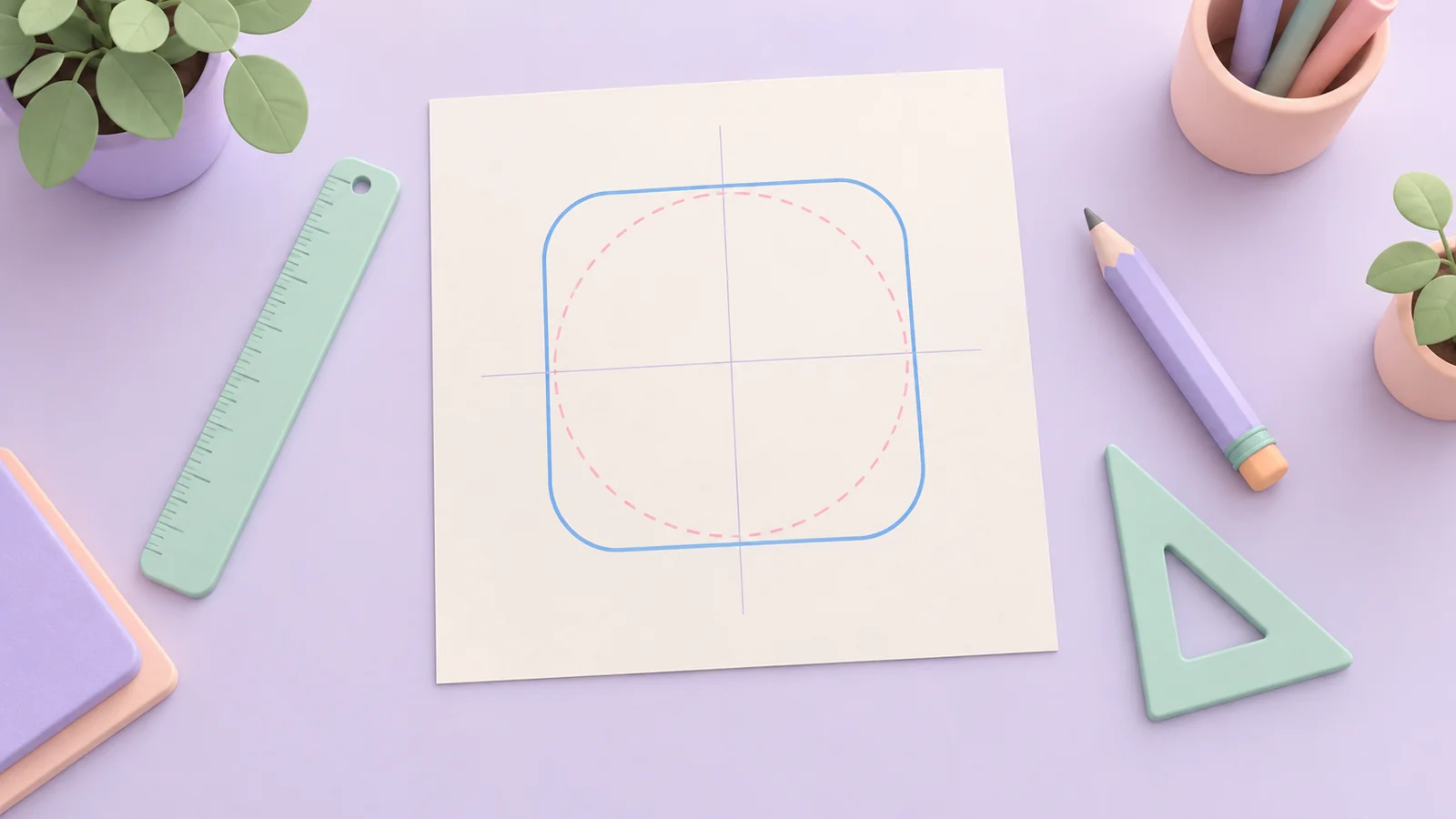
You can download a free app icon template pack here: one ZIP with six SVG templates, each with a PNG guide overlay, for iOS, iPadOS and macOS, Android adaptive icons, Google Play, the Apple touch icon, maskable web icons and favicons. Each file has a canvas at the size the platform asks for, a layer of guides for the safe area and a preview of the mask. Use them in personal and commercial projects, with no attribution.
Download the template pack (ZIP, about 290 KB)
This guide explains what is in the pack, which guide numbers come from Apple, Google and web.dev and which are ours, how to use a template in a design tool, and which official templates are worth using next to it.
Where can you download a free app icon template?
You can download a free app icon template from AI Icon Creator, from Apple’s design resources, from Google’s Android and Google Play documentation and from open-source sets such as Bjango’s templates on GitHub. Ours is a small set that covers six canvases in one download, in SVG, which design tools open as named layers.

Apple’s own templates carry Apple’s exact mask, which we don’t copy; see the last section for where to find them.
What is in the app icon template pack?
The pack holds six SVG templates, a transparent PNG with only the guides for each, a README and the ZIP itself. Each SVG has an artwork layer with a grey placeholder and a guides layer made of separate, named shapes, so you can hide or delete any guide.
| Template | Canvas | Guides from official sources | Guides that are ours |
|---|---|---|---|
| iOS, iPadOS, macOS | 1,024 × 1,024 px | Square layer (Apple) | Central 80% safe area, 22.5% rounded and circle preview |
| Android adaptive icon | 108 × 108 dp | Outer 18 dp reserved, 72 dp visible, 66 dp safe zone, 48 dp minimum logo (Android) | Example circle and squircle masks |
| Google Play listing | 512 × 512 px | Full square, 30% radius, 384 px keyline grid (Google Play) | None |
| Apple touch icon | 180 × 180 px | Opaque square | 80% safe area, 22.5% rounded preview |
| Maskable web icon | 512 × 512 px | Safe circle, diameter 80%; outer 10% may be cropped (web.dev, MDN) | Circle preview |
| Favicon grid | 64-unit viewBox | None | 16 px and 32 px pixel grids |

The numbers are checked against the sources on 9 October 2026. Where a platform publishes no number, the guide is labelled as ours inside the file, and our app icon sizes guide explains each platform’s rules in full.
How do you use the iOS, iPadOS and macOS template?
To use the iOS, iPadOS and macOS template, draw your icon on the 1,024 × 1,024 px canvas, hide the guides and export a square PNG with no rounded corners and no transparency. Apple’s Human Interface Guidelines list the same 1,024 px square for all three platforms and say the system applies the rounded mask.
- Fill the whole square with your background. Apple asks for full-bleed, opaque background layers.
- Keep the subject near the centre. Apple says to keep primary content centred so nothing is cut when the system adjusts the corners, but it publishes no safe-zone size and says the zone varies with image size, layer depth and motion. Our dashed guide, the central 80%, is a rule of thumb.
- Use the blue outline only as a preview. Apple publishes no corner radius, so our 22.5% outline shows roughly what the mask does; our guide to app icon rounded corners explains why it’s an estimate.
- Add layers only if you build a layered icon. For a layered icon, see our Icon Composer guide.
The orange circle on the same template previews the circular mask that watchOS and visionOS apply.
How do you use the Android adaptive and Google Play templates?
To use the Android adaptive template, draw a background and a foreground on the 108 × 108 dp canvas and keep the logo inside the 66 dp safe zone, at least 48 dp across. Android’s adaptive icon documentation says all layers are 108 × 108 dp and that the outer 18 dp on each side is reserved for the mask and for effects such as parallax, which leaves about 72 dp visible. The orange circle and squircle are only examples, because every device maker chooses its own mask. Our Android adaptive icons guide covers the layers and the themed monochrome layer.
The Google Play template is a separate, simpler file. Google Play’s icon specification asks for a full-square 512 × 512 px, 32-bit sRGB PNG up to 1,024 KB, and it rounds the corners itself with a radius of 30% of the icon size, so don’t draw rounded corners or a shadow. The spec says artwork can fill the whole space or sit on the keyline grid, which is 75% of the asset (384 px); the pink dashed square marks it, and the spec calls the keylines a guideline, not a hard rule. Use an opaque background, because Google Play shows its own background colour behind transparent pixels.
How do you use the favicon, touch icon and maskable templates?
To use the web templates, design the favicon on the 64-unit grid, draw the Apple touch icon as an opaque 180 × 180 px square and keep the maskable icon’s artwork inside its 80% safe circle.
- Favicon grid. One cell of the stronger grid is one pixel when the icon is shown at 16 px, because 64 units divided by 16 px is 4 units per pixel. Keep strokes at least 4 units thick. Our SVG favicon guide shows why, and our free favicon converter turns the result into the whole file set.
- Apple touch icon. Export an opaque 180 × 180 px PNG; iOS uses it when someone adds your site to the Home Screen.
- Maskable icon. web.dev defines the safe zone as a circle whose radius is 40% of the icon’s width, and says the outer 10% might be cropped; the pink band in the template marks that edge. Our PWA icon guide has the manifest.
How do you use a template in Figma, Sketch or Illustrator?
To use a template in a design tool, open the SVG that matches your platform, replace the grey placeholder in the artwork layer with your icon, hide the guides layer and export. The files use only rectangles, circles, paths and text with named groups, so design tools can open them; we checked them in Chrome, but we haven’t opened them in every design app.
- Unzip the pack and open the SVG for your platform: drag it onto a Figma or Sketch canvas, or use Open in Illustrator or Affinity Designer.
- Find the
artworkandguideslayers. Delete the grey placeholder circle, and keep the background layer if you want a full-bleed colour. - Draw or paste your icon inside the safe area.
- Hide the
guideslayer, or delete the guides you don’t need. - Export a PNG at the canvas size: 1,024 px for iOS, 512 px for Google Play and maskable icons, 180 px for the touch icon.
If a tool flattens SVG files, place the matching -guides.png above your artwork instead; it is transparent and contains only the guides. Don’t have a first icon yet? Try one, then drop the result into a template:
Which official app icon templates are worth using?
The official templates are worth using when you need a platform’s exact masks or file formats, and ours is a quick start when you need all six canvases in one place.
- Apple. Apple Design Resources lists Apple’s icon production templates and Icon Composer, which Apple describes as a tool for creating layered Liquid Glass icons from a single design for iPhone, iPad, Mac and Apple Watch. It needs macOS Sequoia or later.
- Google Play. The icon specification offers Sketch, Illustrator and Photoshop templates for the 512 px icon.
- Android adaptive icons. The adaptive icon documentation links an official Android app icon template for Figma.
- Bjango. Bjango’s templates on GitHub cover Android, iOS, macOS, tvOS, watchOS, Windows and favicons for several design tools; its last update was in October 2025.
Frequently asked questions
Where can I download app icon templates?
You can download app icon templates from Apple Design Resources, from the Google Play icon specification, from the Android adaptive icon documentation and from open-source sets such as Bjango’s. AI Icon Creator’s free pack puts iOS, Android, Google Play, touch icon, maskable and favicon canvases in one ZIP, with no attribution needed.
What format is an app icon?
An app icon is usually a PNG: a 1,024 × 1,024 px square for iOS, iPadOS and macOS, a 512 × 512 px 32-bit PNG for the Google Play listing, and 108 × 108 dp layers for an Android adaptive icon. Web icons use .ico, SVG and PNG files. Apple’s Icon Composer can also produce a layered icon file.
How do I create my own app icon?
To create your own app icon, pick one simple subject, draw it on the platform’s canvas inside the safe area, check that it reads at small sizes and export the square PNG. Our guide to making an app icon walks through the steps, and you can make one with AI Icon Creator’s generator.
How do I make an app icon mockup?
To make an app icon mockup, mask a copy of your square icon with a rounded rectangle of about 22.5% of its width and place it on a phone, a store listing or a website. Our guide to app icon rounded corners has tested CSS, SVG and Pillow snippets. Upload the square, not the mockup.
Can I use these templates in commercial projects?
You can use the templates in personal and commercial projects without attribution. They are free, provided as is, and the guides inside follow the sources named in the README. Apple’s exact masks aren’t included, so use Apple’s own templates when you need them.
Ready to make your icon?