
To edit an icon you've generated, open it and click Adjust this icon. Choose Whole icon to change the overall look, or Choose areas to change only a part, describe the change, and click Create new version. The edit runs in the background, and the result is saved as a new version while your original stays untouched.
You'll find Adjust this icon under a finished result in the icon studio and in any icon you open from My icons.
Edit the whole icon
Use Whole icon for changes that affect everything: a bolder shape, fewer details, more space around the subject, or new colours.
- Tap a quick suggestion such as Bolder shape, Fewer details or More breathing room, or write your own instruction.
- Under Fine-tune colours, choose Custom colours to set a new subject or background colour with a HEX value, or keep the current ones.
Edit one area
Use Choose areas when only one part is wrong, such as a colour, a small detail or an extra element.
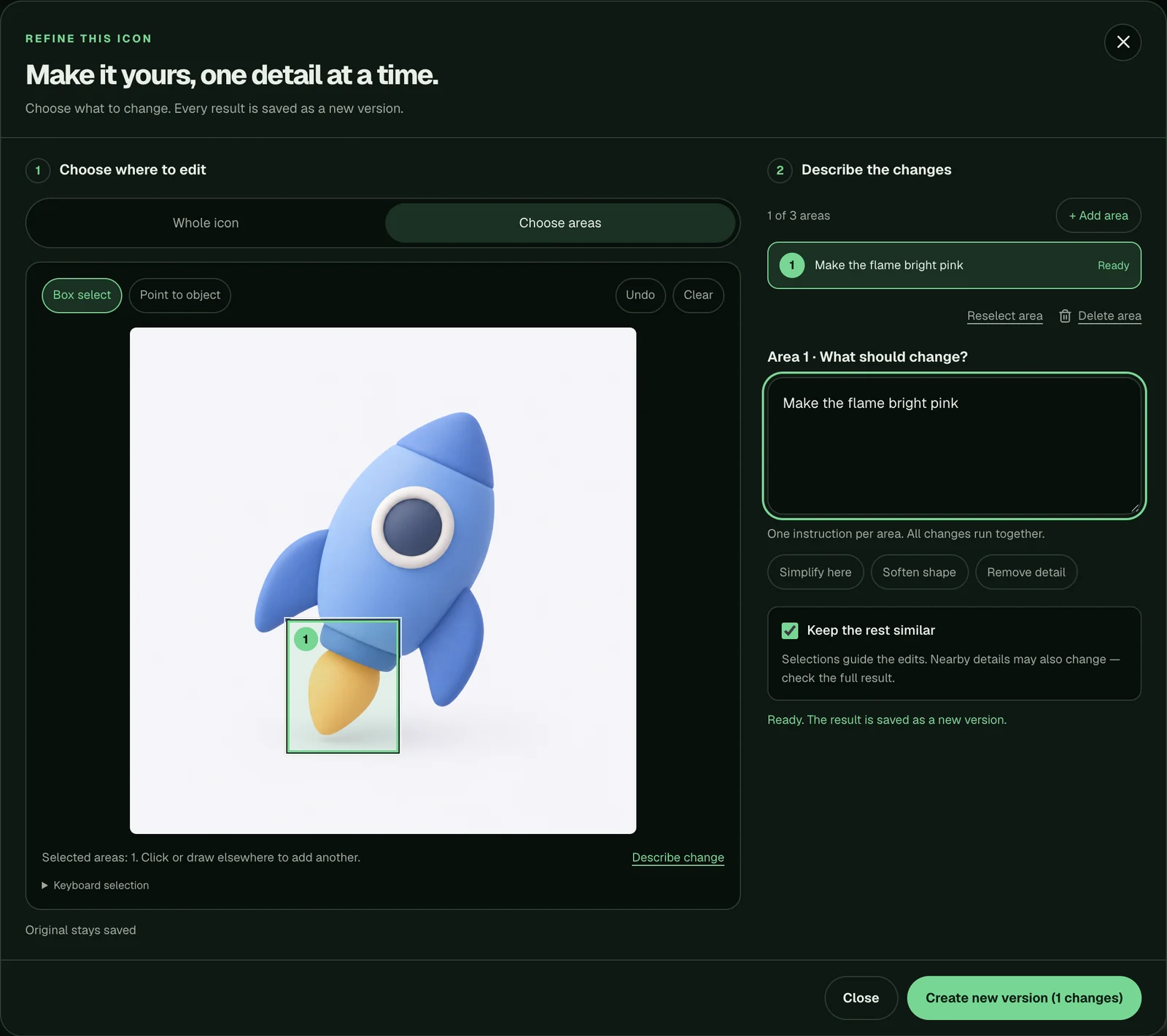
- Pick how to select: Point to object (click the part) or Box select (drag a box around it).
- Describe what should change in that area, for example "Make the flame bright pink".
- Add up to 3 areas, each with its own instruction. All changes run together in one new version.
- Leave Keep the rest similar on so everything outside your areas stays as close to the original as possible.
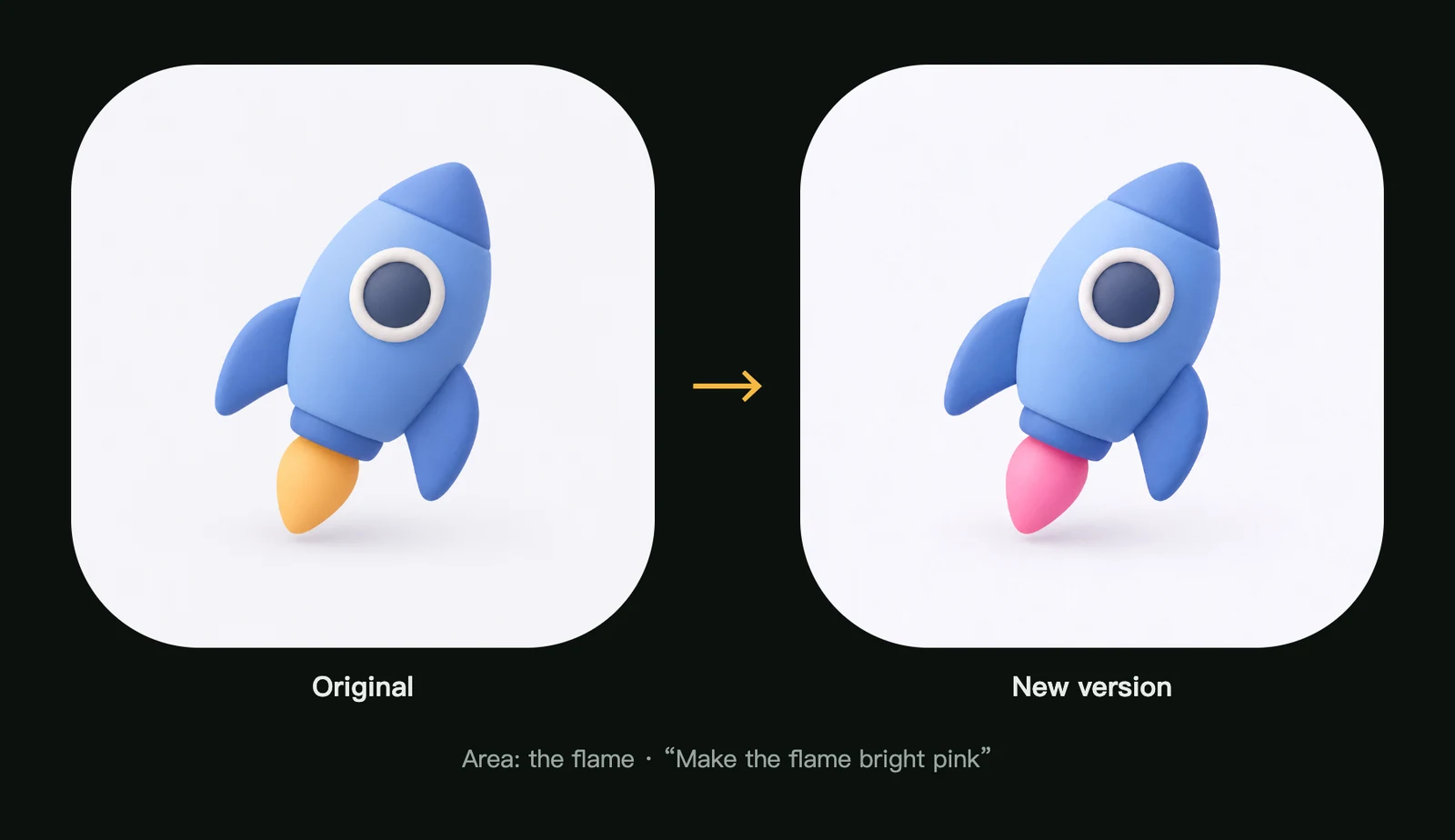
Selections guide the edit, but nearby details can shift slightly. Always check the full result.
After you submit
- The adjustment runs in the background. You can close the window, keep working, or submit more adjustments.
- When it's ready, you'll see Adjustment ready. Click View to compare the original with the new version side by side.
- Up to 4 generations and adjustments can run at the same time.
Version history
Every adjustment adds a version to the same icon. Open the icon in My icons and use Version history to switch between them.
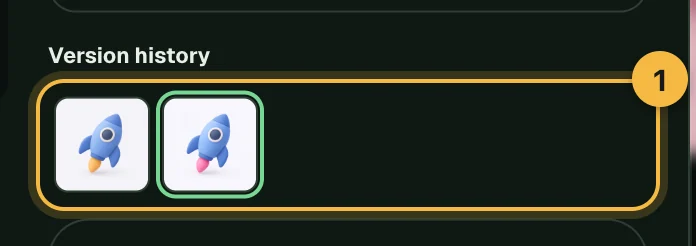
- You can adjust any version again, including the original.
- Deleting a version only removes that version. The others stay in your library.
How to write a good edit instruction
| Instead of | Try |
|---|---|
| "Make it better" | "Make the outline thicker and remove the small stars" |
| "Change the colour" | "Make the flame bright pink" |
| "Fix the background" | "Change the background to deep navy" |
Name the part, then say exactly what should happen to it. One change per area works best.
Frequently asked questions
Does editing an icon use credits?
Yes. Each new version uses credits, and the amount is shown in the adjust window before you submit. If an adjustment doesn't finish, the credits are returned automatically; see failed generations and refunds.
Will editing change my original icon?
No. Every edit creates a new version, and the original stays saved in your version history.
Why did parts outside my selected area change?
The model redraws the icon with your selection as a guide, so nearby details can move slightly. Keep Keep the rest similar on, draw a tighter box, or describe the part more precisely.
Did not find an answer?
Open a ticket and tell us what happened. We will reply as soon as we can.