
Style Preview draws one subject in a whole grid of styles at once, so you can see which look suits your app before you commit. A preview takes under a minute. You pick up to three styles you like, and AI Icon Creator makes each one as a full icon. Previews are only for choosing and can't be downloaded. Your first preview is free; later previews use credits, like one generation.
Where to find Style Preview
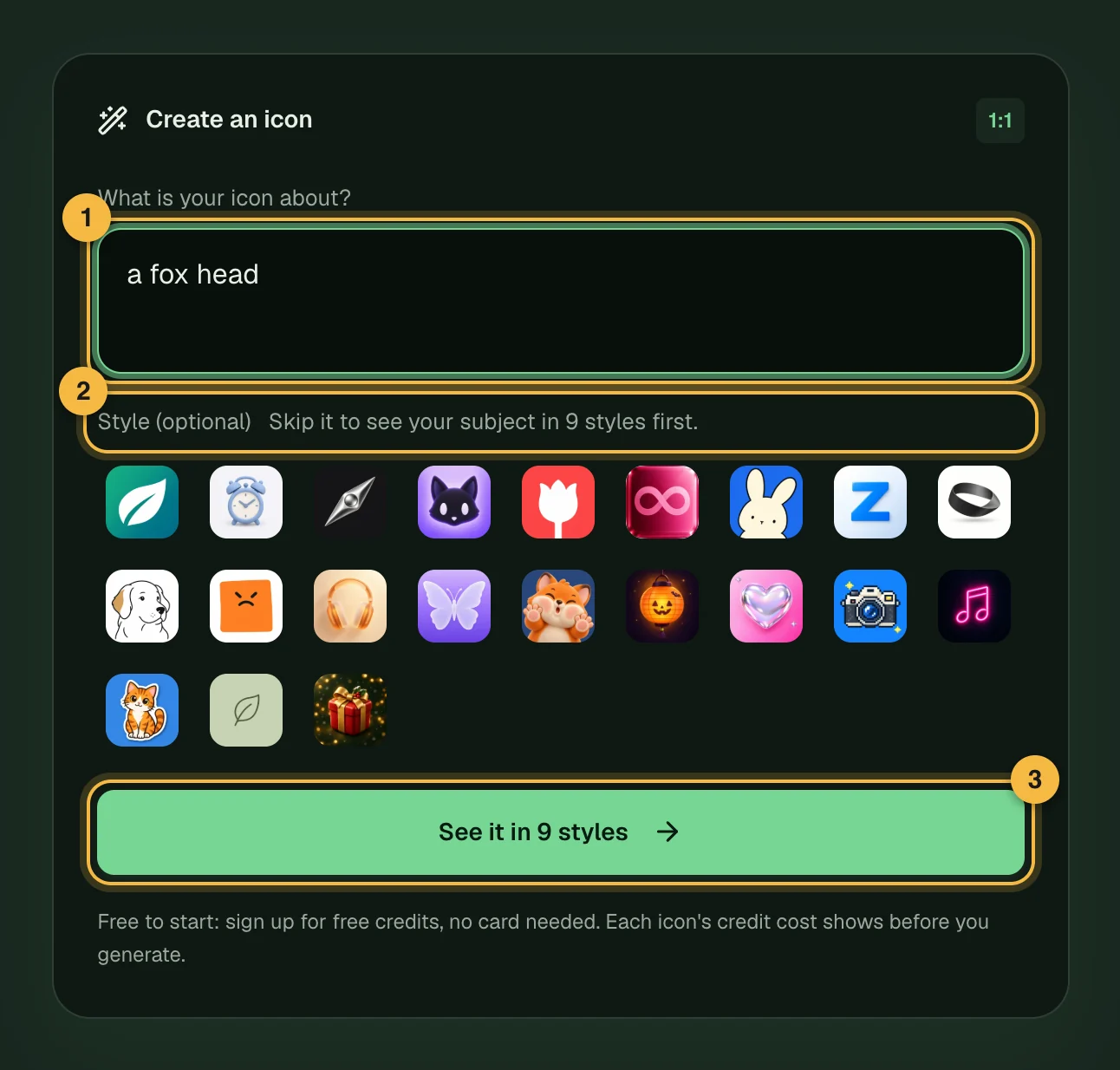
The home page and the studio have one box and one main button. If you haven't picked a style, the button reads See it in … styles; the number is how many styles the grid shows. Pressing it starts a Style Preview. The style row under the box says Style (optional) and reminds you that skipping it shows your subject in a grid of styles first.
If you pick a style yourself, the button changes to Start creating (home page) or Generate icon (studio) and makes that one style straight away. Tap the picked style again to unpick it and get Style Preview back.
How to use Style Preview
- Describe your subject. Write one thing to draw, such as "a fox head", or describe your app, such as "a meditation app".
- Press See it in … styles. If you wrote a thing, the preview starts at once. If you described an app, you first choose one of a few idea cards and press the button again; the ideas guide explains the cards.
- Wait under a minute and keep the page open. The page shows "Drawing "a fox head" in … styles…" while it works.
- Pick up to three styles. The page asks you to pick up to three styles you like. Each cell shows its style name. Tap a cell to pick it, and tap it again to drop it.
- Press Make icons. The button shows how many icons and what they cost, for example Make icons (2) · … credits. Your picks open in the studio and each is made as a full icon. If you aren't signed in, the button reads Sign up and make your icons instead, and your preview and picks are kept when you sign up.
- Want another look? Press Try another subject to go back to the box.
If you edit the words in the box while a preview is showing, the page starts over with your new words.
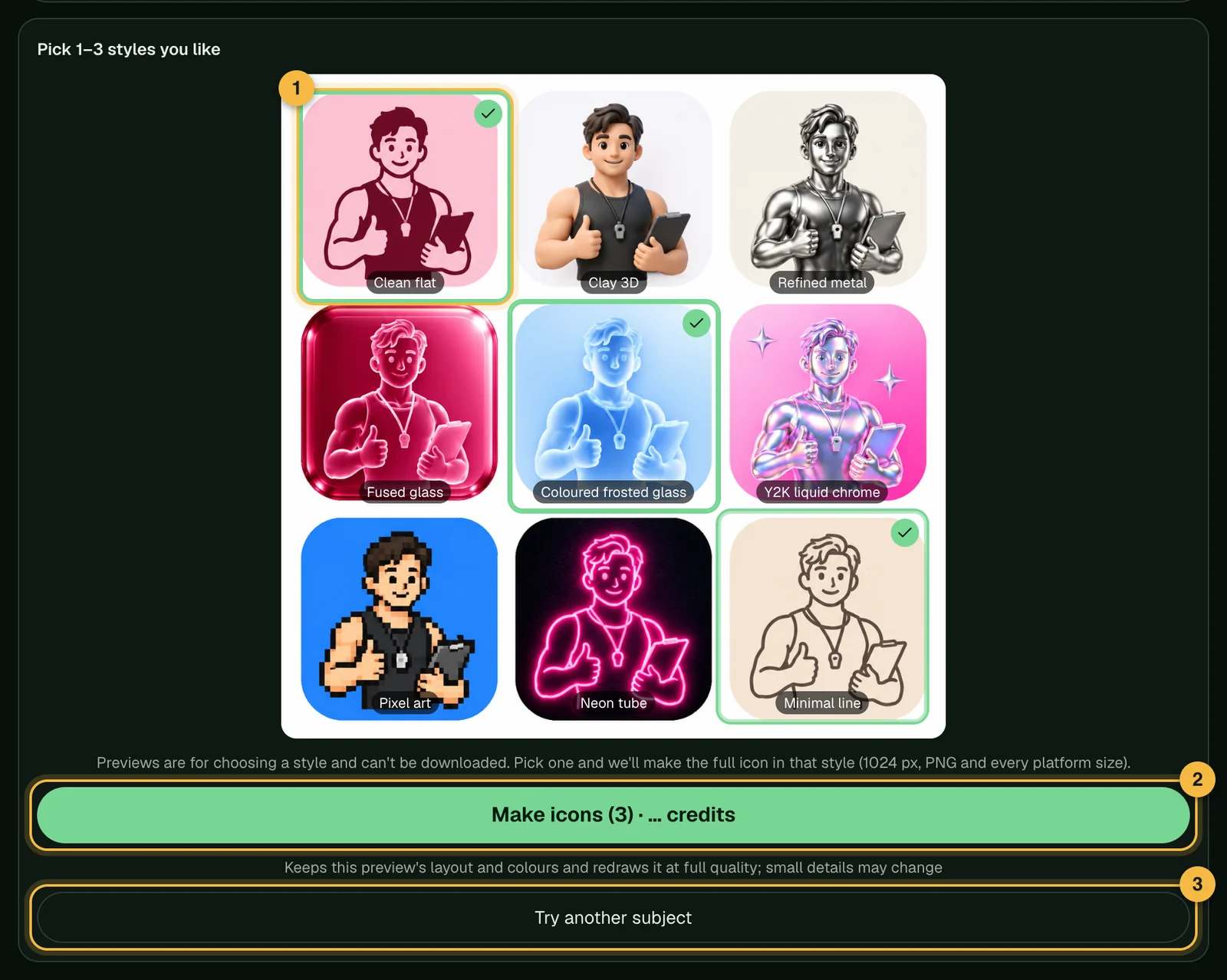
Some styles come with their own colours. When you pick one, a note under the grid says so, and the full icon keeps that style's colours.
If you leave the page
A preview that is still drawing, or finished but not picked yet, comes back as a small box called Your Style Preview. It says "Still drawing. Tap to watch." or "Ready. Tap to pick your styles." Tap it to carry on, or press Hide to dismiss it.
What the full icon looks like
Each style you pick is redrawn at full quality in that style. The full icon keeps the layout and colours of the cell you picked, so small details may change. It is a 1024 px icon that you can download as a PNG, or as an app icon pack with every platform size. See download and export for the formats.
What it costs
Your first preview is free. Later previews cost the same as one icon generation, which the studio shows next to the box, and making a full icon from each picked style uses credits too, the same as any other generation. The Make icons button shows the cost before you click, and a preview or icon that fails is refunded automatically. For balances, expiry and plans, see how credits work and the pricing page.
Without an account
You can look at a free preview without signing up. A quick check comes first; it usually completes by itself. As a visitor, the note under the button reads "About 45 seconds · 1 free preview today". It does not count down: once your free preview is used up, a message tells you so and offers sign-up, or you can come back tomorrow. While a preview draws, a short note offers sign-up, and Just looking closes it.
You need an account to make the full icons. Press Sign up and make your icons, and your preview and picks are kept, so you don't start again. If you sign up with email, your credits arrive after you confirm your address. Your preview stays saved, so pick and press Make once they arrive.
If something goes wrong
- "This one didn't come out, and any credits were returned." Try again.
- "This picture didn't pass our content check, and any credits were returned." Describe the subject another way.
- "Your last preview is still being drawn." Wait a moment. Only one preview draws at a time.
- "Style Preview is not available right now." Try again later, or describe your icon and pick a style yourself.
Frequently asked questions
Can I download a preview?
No. Previews are only for choosing a style. Pick the styles you like, and AI Icon Creator makes them as full icons that you can download.
Do I need an account to use Style Preview?
No, you can look at a free preview as a visitor, after a quick check. You need an account to make the full icons, and your preview and picks are kept when you sign up. Sign-up gives free credits, and no card is needed.
Why does the full icon look a little different from the preview?
The full icon is redrawn at full quality. It keeps the preview's layout and colours, but small details can change.
How many styles can I pick?
Up to three. Each picked style becomes its own icon.
Do I have to use Style Preview?
No. If you pick a style yourself, the button makes that style straight away and no preview is drawn. You can also edit a finished icon in the editing guide.
Is Style Preview the same as the idea cards?
No. The idea cards suggest what to draw when you describe an app. Style Preview shows the subject you chose in a grid of styles at once. They are two steps of the same path: ideas, then styles, then icons.
Did not find an answer?
Open a ticket and tell us what happened. We will reply as soon as we can.