

To add a favicon in Shopify, open your theme in the editor, go to Theme settings, choose Logo or Favicon, select a square image and click Save. Shopify’s help page says the ideal size is 16 × 16 or 32 × 32 px, and that larger images are reduced to 32 × 32 px. You need the Basic plan or higher: the Starter plan can’t add a favicon.
This guide covers the steps, the size your theme actually serves, what happens to a wide logo, and what to check when the favicon doesn’t show.
How do you add a favicon in Shopify?
To add a favicon in Shopify, open Online Store in your admin, click Edit theme, open Theme settings, choose Logo or Favicon, select your image and save. The steps come from Shopify’s help page on adding a favicon to your store, which also describes the same flow in the Shopify mobile app.

- Make a square PNG. A 32 × 32 px image is the size Shopify names. A larger square works too and is reduced.
- Open Online Store, then Edit theme. Find the theme you want to change and click Edit theme.
- Click the gear icon to open Theme settings.
- Choose Logo or Favicon. Shopify says the label depends on your theme version.
- Select your image. In the Favicon image section, click Select image, pick a file you’ve already uploaded or add a new one, then click Done. You can add alt text with Edit.
- Click Save, then open your live store in a new tab.
Shopify’s page says you can add a favicon on the Basic plan or higher, or on the Agentic plan if you’re building an online store. On the Starter plan you can’t.
What size should a Shopify favicon be?
A Shopify favicon should be a square image, and 32 × 32 px is the size that ends up on your storefront. Shopify’s help page says the ideal size is either 16 × 16 or 32 × 32 px, and that a larger image is reduced to 32 × 32 px on upload.
Shopify’s own reference themes confirm it. In Dawn (version 16.0.0) and Horizon, the page head prints a single icon link built with settings.favicon | image_url: width: 32, height: 32, and Dawn’s setting label says the favicon is displayed at 32 × 32 px. Other themes can differ, because a theme is code.
| Setting | What Shopify’s help page and default themes say |
|---|---|
| Ideal size | 16 × 16 or 32 × 32 px |
| Larger images | Reduced to 32 × 32 px |
| Shape | Square (the theme requests a 32 × 32 px crop) |
| Plans | Basic or higher; not the Starter plan |
| Theme editor | The favicon isn’t shown there; check your live store |
Google’s own favicon guidelines for Search, which we read on 4 October 2026, ask for a square favicon of at least 8 × 8 px and recommend one larger than 48 × 48 px. A 32 × 32 px favicon meets the minimum but not the recommendation. Shopify’s page says a favicon isn’t guaranteed to appear in Google results even when the guidelines are met.
We’d upload a square PNG of 256 × 256 px or more, drawn as a simple symbol, and let Shopify reduce it. Starting large keeps the edges clean when the theme asks for 32 px, and the image is never enlarged past its original size, according to the Liquid image_url filter documentation. Our favicon converter exports PNG files at several sizes if you need to prepare one, and our favicon sizes guide explains each size.
Why does a wide logo look wrong as a Shopify favicon?
A wide or stacked logo looks wrong as a Shopify favicon because the theme asks for a 32 × 32 px square, and Shopify’s image filter crops from the centre by default. The Liquid documentation says that when the requested dimensions give a different aspect ratio from the original, crop decides which part is shown, and the default is center.
In AI Icon Creator’s simulation, we took a made-up candle shop’s three logo shapes, cropped each to a centred square and shrank it to 32 × 32 px, as the default themes do. The 3 : 1 wordmark was left with the middle of its lettering, a clipped “Oak &”. The 4 : 5 stacked logo kept a small symbol above a smudge where its name had been. Only the square symbol survived. The test follows Shopify’s documented crop on fictional logos; it isn’t a test on a live store.

So don’t upload your full logo. Upload the square symbol or a monogram on its own tile. If your brand has only a wordmark, use its first letter or a simple mark. Our guide to keeping an icon legible at small sizes has a checklist.
What makes a good Shopify store favicon?
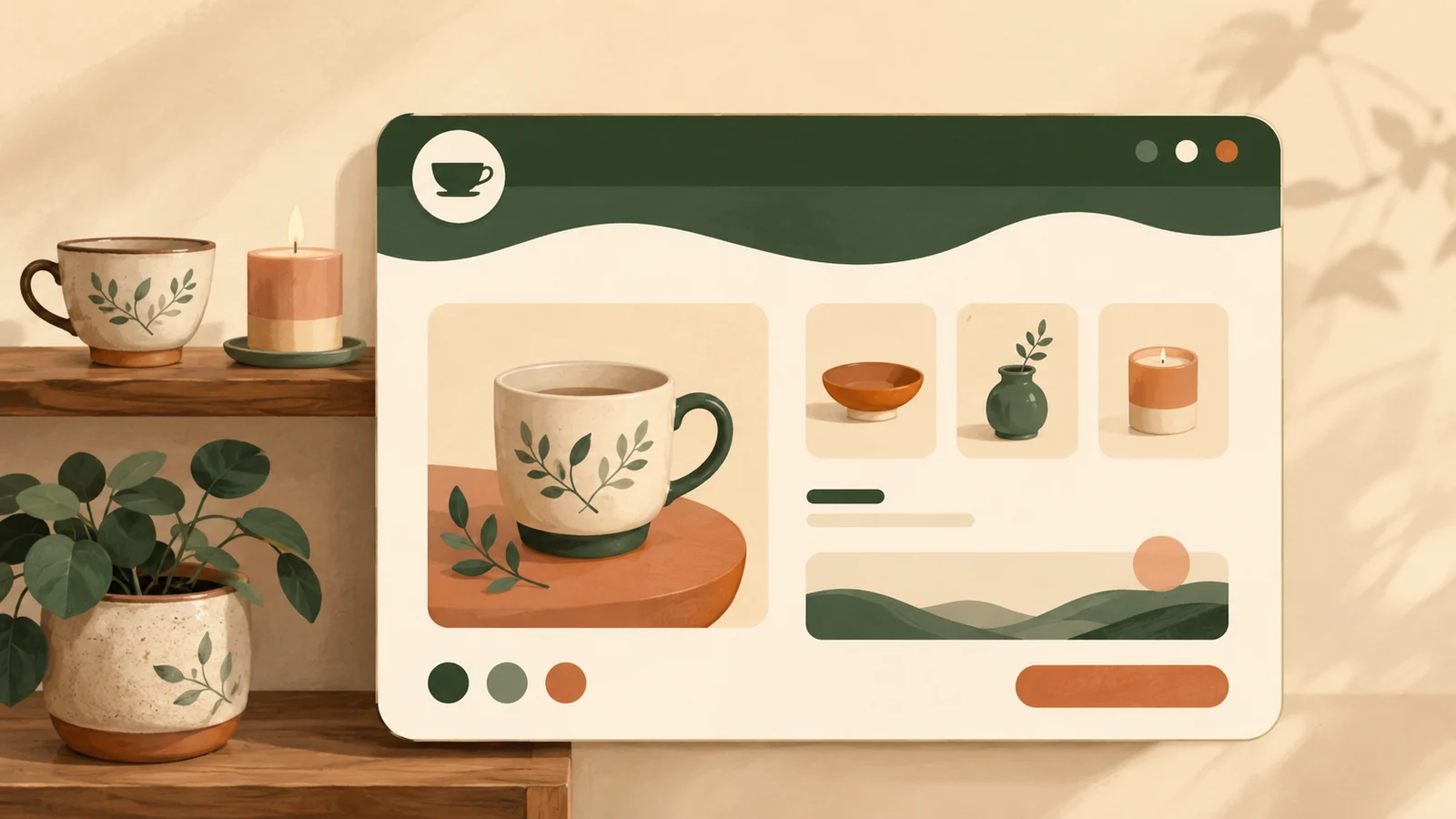
A good Shopify store favicon is one solid shape on a plain coloured tile, because at 16 to 32 px, details disappear and shapes remain. In AI Icon Creator’s test, four shop icons (a candle, a teacup, a potted plant and a vase) were made in one flat style and shown at 32 px on a light and a dark browser tab, then at 16 px. At 16 px the candle’s flame, the cup’s steam and the leaf veins merged into a few pixels, but the pot, cup and vase silhouettes stayed recognisable. The coloured tile kept every icon visible on both tab colours.

A few rules follow:
- One object, not a scene. Pick the thing you sell or a simple mark.
- Use a tile. A tile colour gives the symbol its own background on light and dark tabs. Our app icon colours guide shows how to pick one.
- Check 16 px. Preview the icon small before you upload it.
Try a symbol for your own shop:
Where does the Shopify favicon show up?
The Shopify favicon shows on your live storefront, in browser tabs, bookmarks and history, but not everywhere in your store. Shopify’s help page says favicons don’t display in the theme editor, because the editor is part of the Shopify admin. It also says favicons don’t display on customer accounts and checkout pages unless you’re on Shopify Plus.

On Shopify Plus, the checkout favicon isn’t set in the theme editor or the checkout editor. It’s set through the Branding API, as Shopify’s developer guide on adding the favicon at checkout explains, or with Checkout Blocks. The guide’s newer API note points to a combined configuration for checkout, customer accounts and sign-in.
Why is my Shopify favicon not showing?
A Shopify favicon usually doesn’t show because you’re looking in the wrong place, the browser cached the old icon, or Google hasn’t updated its results. Work through these in order:
- Open the live store. The theme editor never shows the favicon.
- Check your plan. The Starter plan can’t add one.
- Check the theme setting. Look under Logo or Favicon in Theme settings, depending on your version, and confirm an image is selected and saved. Shopify’s Dawn only prints the favicon tag when the setting isn’t blank.
- Use a square image. A wide image is cropped to the centre and can look like nothing at 32 px.
- Clear the cache and reload. Browsers hold on to old favicons, so try a private window.
- Check Google separately. Shopify says to submit your sitemap so Google can crawl your store, and Google says favicons can take days to weeks to update and aren’t guaranteed.
- Checkout is separate. Customer accounts and checkout need Shopify Plus and the Branding API.
What if you need an ICO file?
Shopify’s theme setting takes an image, so a PNG is enough for the storefront. If another tool or an older workflow asks for .ico, our free PNG to ICO converter builds a multi-size file from one image, and our SVG to ICO converter handles vector logos. Using another builder? See our guides to the Webflow favicon and the Squarespace favicon. If you’re starting from nothing, our guide on how to make an app icon walks through choosing a simple symbol.
Frequently asked questions
What size should a Shopify favicon be?
A Shopify favicon should be a square image, and Shopify’s help page says the ideal size is 16 × 16 or 32 × 32 px. Larger images are reduced to 32 × 32 px. Shopify’s default themes request a 32 × 32 px version, so draw a simple symbol that stays clear at that size.
Can I add a favicon on the Shopify Starter plan?
You can’t add a favicon to your online store on the Shopify Starter plan, according to Shopify’s help page. You can add one on the Basic plan or higher, or on the Agentic plan if you’re building an online store. Check your plan in the admin before you look for the setting.
How do I add a favicon to my Shopify checkout?
To add a favicon to your Shopify checkout, you need Shopify Plus, because checkout and customer account pages don’t show a favicon on other plans. It can’t be set in the theme editor or the checkout editor. Use the Branding API or Checkout Blocks, following Shopify’s developer guide for the checkout favicon.
Why isn’t my Shopify favicon showing in Google?
Your Shopify favicon may not show in Google because Google hasn’t recrawled your store, or because it doesn’t meet Google’s rules. Shopify says to submit your sitemap. Google asks for a square favicon, recommends one larger than 48 × 48 px, and says updates can take days to weeks and aren’t guaranteed.
How do I make a Shopify favicon with AI?
To make a Shopify favicon with AI, describe one simple object for your shop, generate it in a few styles, pick the one that stays clear at 16 and 32 px and export it as a square PNG. In AI Icon Creator you can compare styles side by side, then upload the PNG under Theme settings in Shopify.
Ready to make your favicon?