
Icon style
Halloween app icons
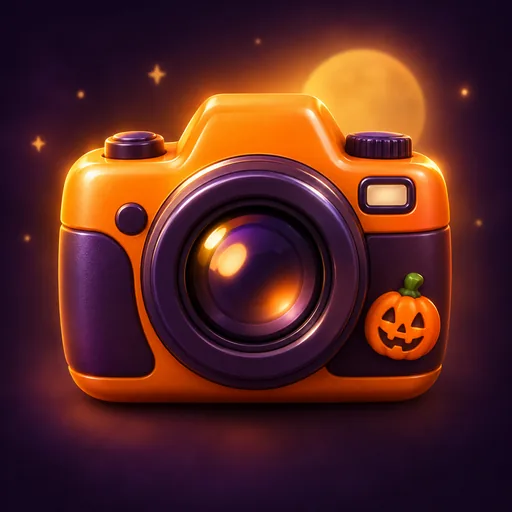
Halloween app icons are app or Home Screen icons restyled for October: an orange and purple palette, a night sky and one small spooky accent such as a pumpkin or a bat. This style makes one from a short description of your subject, in either of two looks: Candy night, with glossy, glowing candy shapes, or Paper-cut glow, with dark paper silhouettes lit from behind.
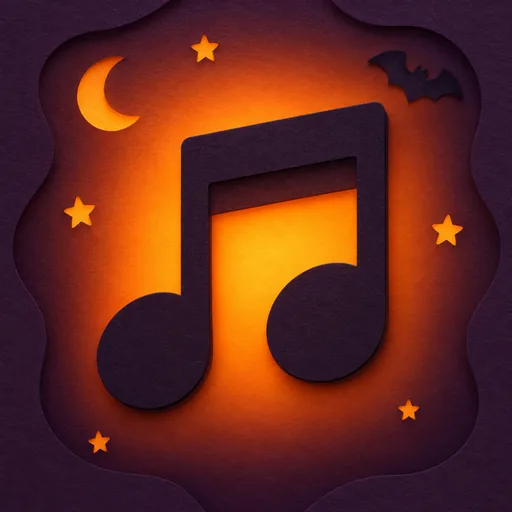
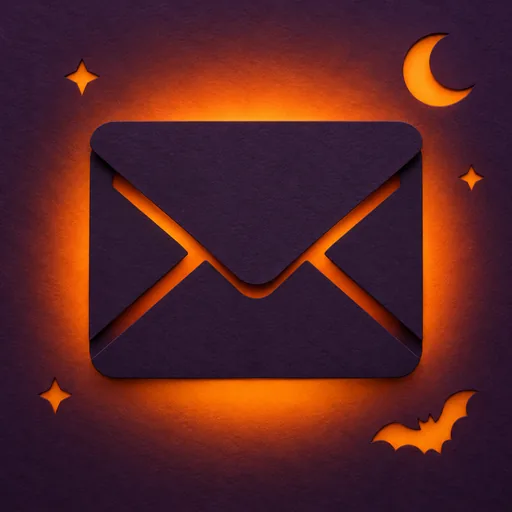
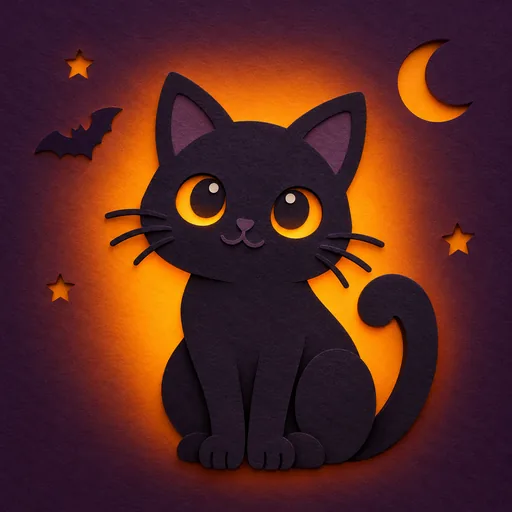
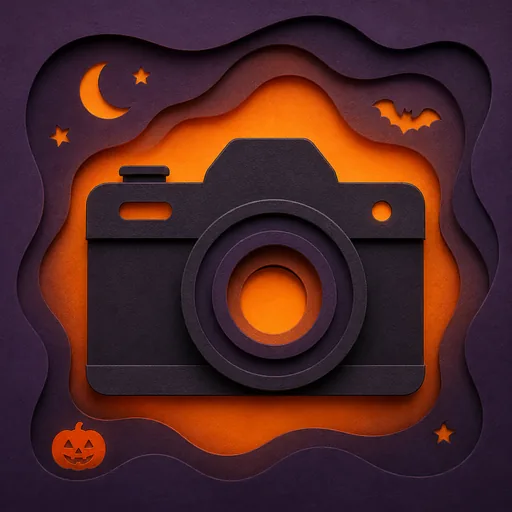
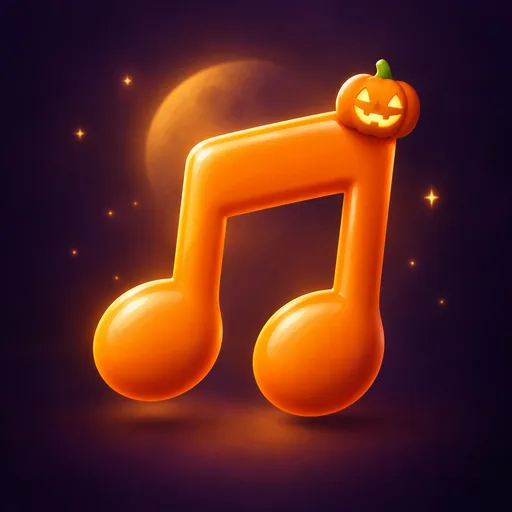
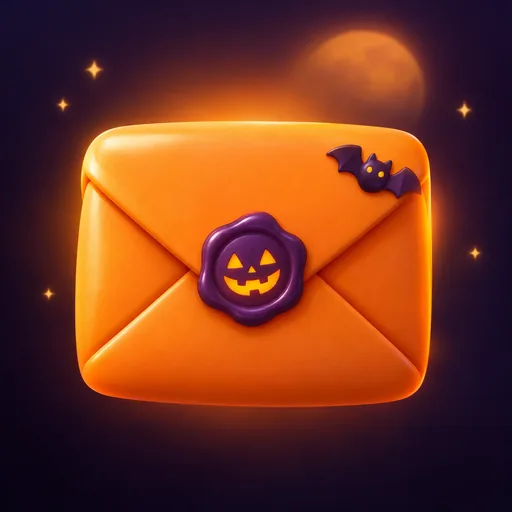
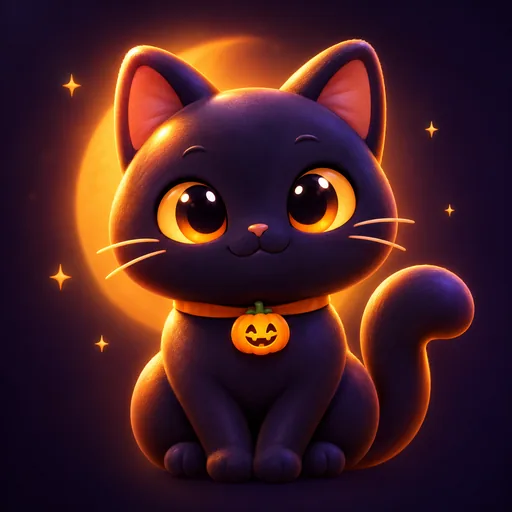
In the examples below, Candy night turns a camera, a cat, an envelope and a music note into rounded, candy-like objects, each with a small pumpkin or bat accent. Paper-cut glow redraws the same four as near-black paper cut-outs on an orange glow, with a moon, stars and bats cut into the layers around them.
Use them as a seasonal option in your app, for a game or a party app, or for a themed iPhone Home Screen. Pick one main object with a clear outline: this style sets its own colours and background, so you only describe the subject. Our guide to keeping an icon legible at small sizes shows how to check the result at Home Screen size.
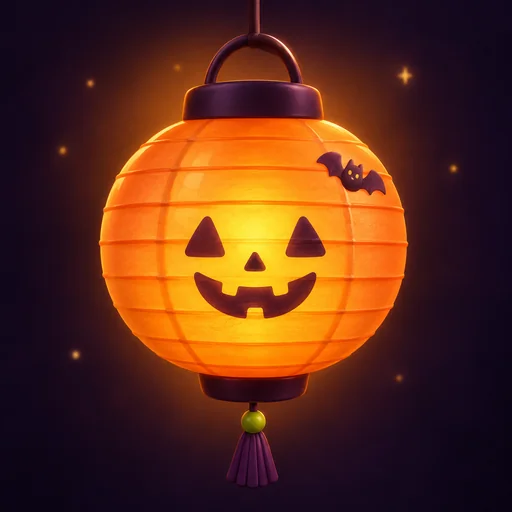
Halloween icons in both looks
Every example was made with this style. Click one to start with the same look.
How to make a Halloween app icon with AI
Making a Halloween icon in AI Icon Creator takes three steps, from a short description to a PNG or an app icon pack.
- 01
Describe one subject
Write the object, plus one detail only if it changes the outline: “a camera”, “a cat”, “an envelope” or “a round paper lantern with a pumpkin face”. Leave out colours and backgrounds, because this style sets its own, and skip scenes with many parts, which blur at small sizes.
- 02
Pick a look
Choose Candy night for playful apps such as games and party planners, or Paper-cut glow for utilities, music and reading apps, and for Home Screen sets that should look like a family. You can switch between the two for the same subject.
- 03
Edit and download
If one part is wrong, select just that area and ask for a different version instead of starting again; each edit is saved as a new version. Then download the PNG or the app icon pack with iOS, Android and web files. See how to download and export your icon.
Halloween app icons: common questions
How do I make a Halloween app icon?
To make a Halloween app icon in AI Icon Creator, choose the Halloween style, pick Candy night or Paper-cut glow, describe one subject in a short phrase and download the result as a PNG or an app icon pack. The style sets the colours and the background, so you only describe the subject.
What is the difference between Candy night and Paper-cut glow?
Candy night makes glossy, rounded, candy-like objects with a warm glow, while Paper-cut glow makes flat, near-black paper silhouettes in layers with orange light behind them. Candy night suits playful apps such as games and party planners. Paper-cut glow suits calmer apps, and Home Screen sets that should look like a family.
How do Halloween icons look at real sizes?
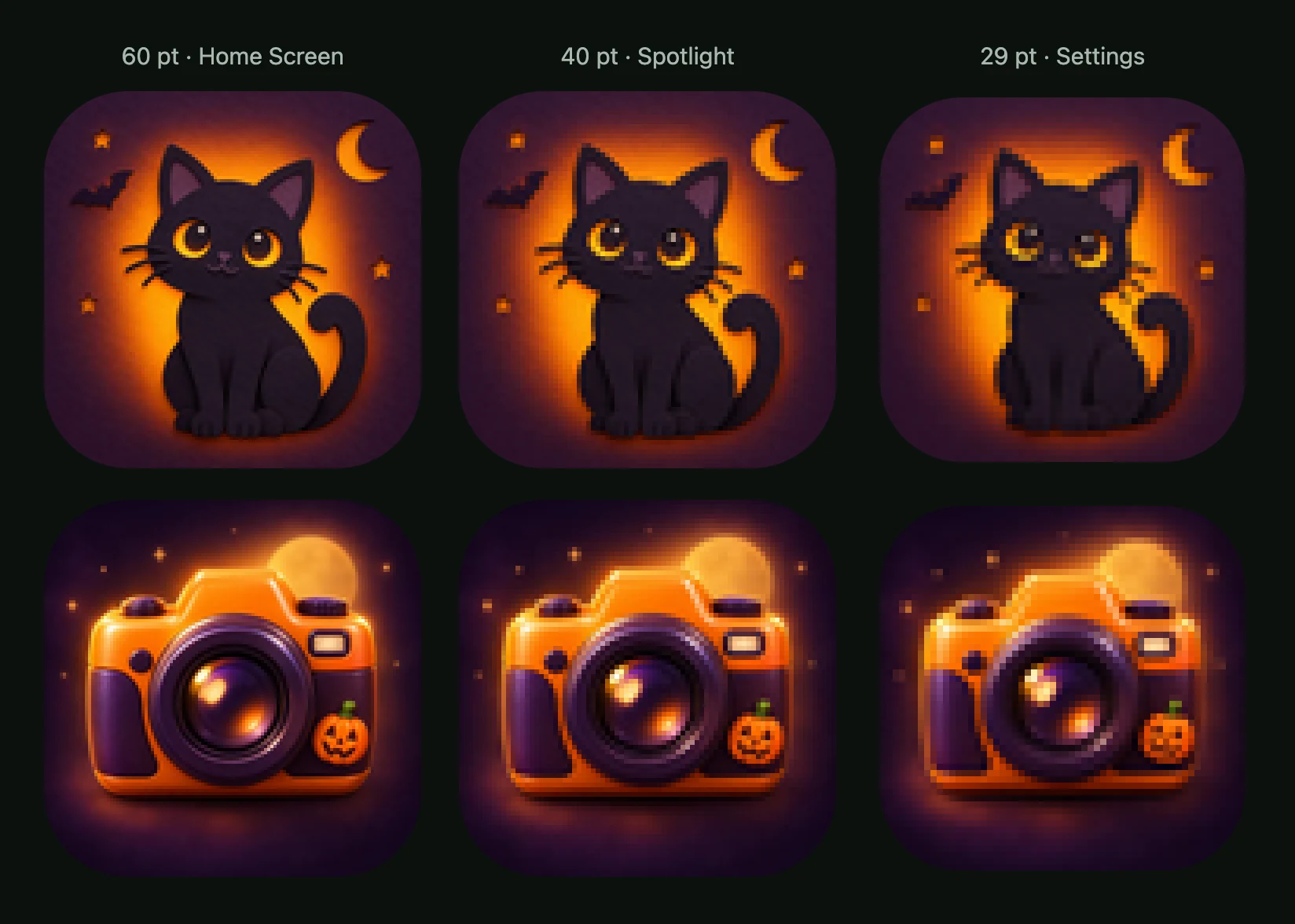
In AI Icon Creator's real-size check, we shrank the eight approved Halloween icons to the sizes an iPhone shows them at: 60 pt on the Home Screen, 40 pt in Spotlight and 29 pt in Settings. The main shapes stayed readable in both looks at 29 pt, but small accents such as pumpkins, bats and stars lost their detail and shrank to small blobs, so don't let an accent carry the meaning. The app icon sizes guide lists every size each platform asks for.
Can I change my app's icon for Halloween?
You can offer a Halloween icon as an alternate app icon on iOS. Apple's Xcode documentation on alternate app icons says people choose an alternate icon in the app's interface, and your app switches to it by calling setAlternateIconName with the icon's name; the system shows an alert when the icon changes. Add the Halloween icon as an option in your settings, and keep your logo's main shape recognisable, because Apple's App Review Guidelines ask that icons, alternate icons included, are similar to avoid confusion.
Can I use Halloween icons on my iPhone Home Screen?
You can use any picture as the icon of a Home Screen shortcut with Apple's Shortcuts app, as Apple's guide to adding a shortcut to the Home Screen explains. Download your Halloween icon first, make a shortcut that opens the app you want to restyle, open its details and choose Add to Home Screen, tap the icon in the Name and Icon area, pick your icon with Choose Photo or Choose File, then tap Add. Describe one subject per app to make a matching set.
Which colours and subjects work for a Halloween app icon?
Orange against deep purple is the palette this style uses, and that contrast is what keeps the icon readable at small sizes. Choose one main object with a clear outline, such as a camera, an envelope, a cat, a music note or a pumpkin lantern, and leave out scenes with many parts, lettering and colour requests.
Related styles
Further reading
- How to Keep an App Icon Legible at Small SizesHow to keep an app icon legible at small sizes: where icons shrink to 20–40 px, three quick tests, and fixes for thin lines, narrow gaps, detail and contrast.
- App Icon Sizes 2026: iOS, Android and Web Size ChartEvery app icon size you need in 2026 for iOS, Android, Google Play and the web, plus safe zones, masks, common mistakes and a checklist before you submit.
- Icon Styles Explained: Types of Icons, with ExamplesA visual guide to icon styles: line, filled, duotone, flat, gradient, 3D, glass, metal and mascot icons, when to use each, and the icon style trends for 2026.