
Icon style
Pixel art app icons
Pixel art app icons, also called 8-bit icons, are app icons built from visible square blocks, in the look of early video games. In AI Icon Creator you write a few words about one subject and get a finished icon in this style. Pixel icon libraries suit the buttons and menus inside an app. This page is about the one icon that represents your whole app. If you meant the icons on a Google Pixel phone, see the questions below.
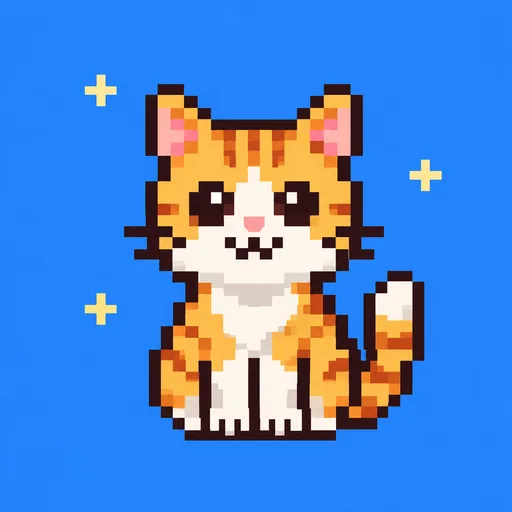
The four examples below are a gold music note, a cream envelope, an orange tabby cat and a grey and cream camera with a glossy blue lens. Each has a dark outline, chunky blocks and flat colour shaded in a few steps, and all four sit on the same bright blue background with a few small yellow sparkles. Their bold shapes stay readable when the icon gets small. The stair-steps soften as each block shrinks toward a single screen pixel, and the questions below show how far.
Pixel app icons suit games, retro tools and playful utilities, and any app that wants a friendly, nostalgic face. Blocks this chunky leave little room for detail, so name one object with a recognisable outline and leave colours and background to the style. For games, our guide to game app icon design shows what the top icons put in the frame.
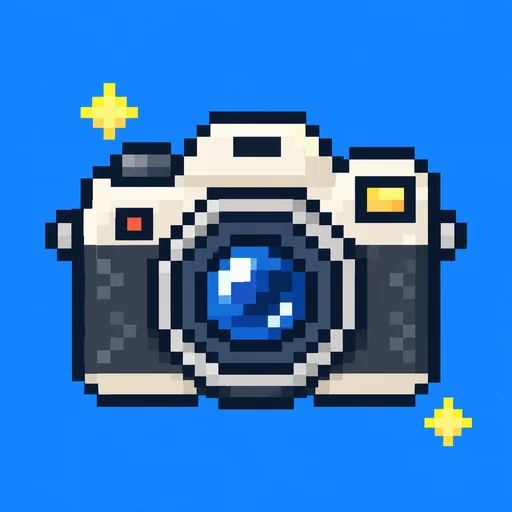
Pixel art icon examples: note, envelope, cat, camera
Every example was made with this style. Click one to start with the same look.


How to make pixel art app icons with AI
Most of the work in a pixel art icon is choosing what to draw. The rest takes three short steps.
- 01
Describe one subject
The “Make a pixel art icon” button takes you to the studio with this style already selected. Name the object and add a single detail only when it alters the silhouette: “a camera with a round lens”, “a tabby cat with a striped tail” or “two joined music notes”. Leave colours and background to the style, and skip scenes: a street with a shop, a car and a tree needs more blocks than one icon can spare.
- 02
Squint at it, then fix one part
Generate the icon, then squint at it or shrink it to thumbnail size: if the shape still reads, it is doing its job. If only one part is wrong, say an ear or a paw, mark just that part and describe what should change. The edit becomes a new version, and the first one is kept.
- 03
Download what you need
Open Download & export on the finished icon. Download icon gives you one PNG, good for mock-ups and slides, and App icon pack gives you a ZIP with the iOS, Android and web icon files, for when you ship. The help article on downloading and exporting explains each file.
Pixel art app icons: common questions
Can AI make a pixel art app icon from a description?
Yes, AI Icon Creator makes a pixel art app icon from a short description. Choose the Pixel art style, type one subject such as “two joined music notes”, and generate. The chunky blocks, the dark outline and the background come with the style, so the description only needs the thing itself. Download & export then gives you the PNG, or the whole app icon pack as a ZIP.
Can I turn a photo into a pixel art icon?
Yes. In AI Icon Creator, Pixel art is one of the styles that can redraw your own photo, sketch or logo as an icon: open the Image to icon tool, add your picture, say in one line what it shows, choose Pixel art and generate. The picture only identifies the subject, so you get a new pixel art icon, not a pixel-by-pixel conversion of your photo.
What is the difference between a pixel art app icon and a pixel icon set?
A pixel art app icon is the single image that represents a whole app on the Home Screen, while a pixel icon set is a library of small symbols for the buttons and menus inside an app. This style makes the first kind. Icon sets are often drawn on a small fixed grid, such as 24 by 24 pixels, and an app can use both. Our guide to icon styles explains both families.
What are the icons at the top of my Pixel phone?
The icons at the top of a Google Pixel phone's screen are Android status icons, small symbols for things such as mobile signal, Wi-Fi, battery, alarms and notifications. The phone's software draws them, and they have nothing to do with pixel art. This page is about pixel art app icons, the picture on an app's Home Screen tile.
Is a pixel art icon the same as an 8 bit icon?
A pixel art icon and an 8 bit icon usually mean the same look: square blocks, stair-stepped edges and flat colours, as on early 8-bit game consoles. The icons made here share that look. But each is made as one picture from your description, so the blocks are only roughly even and the colours are not limited to a console's palette. Treat it as a style, not a game-ready sprite.
Do pixel art icons look blurry at small sizes?
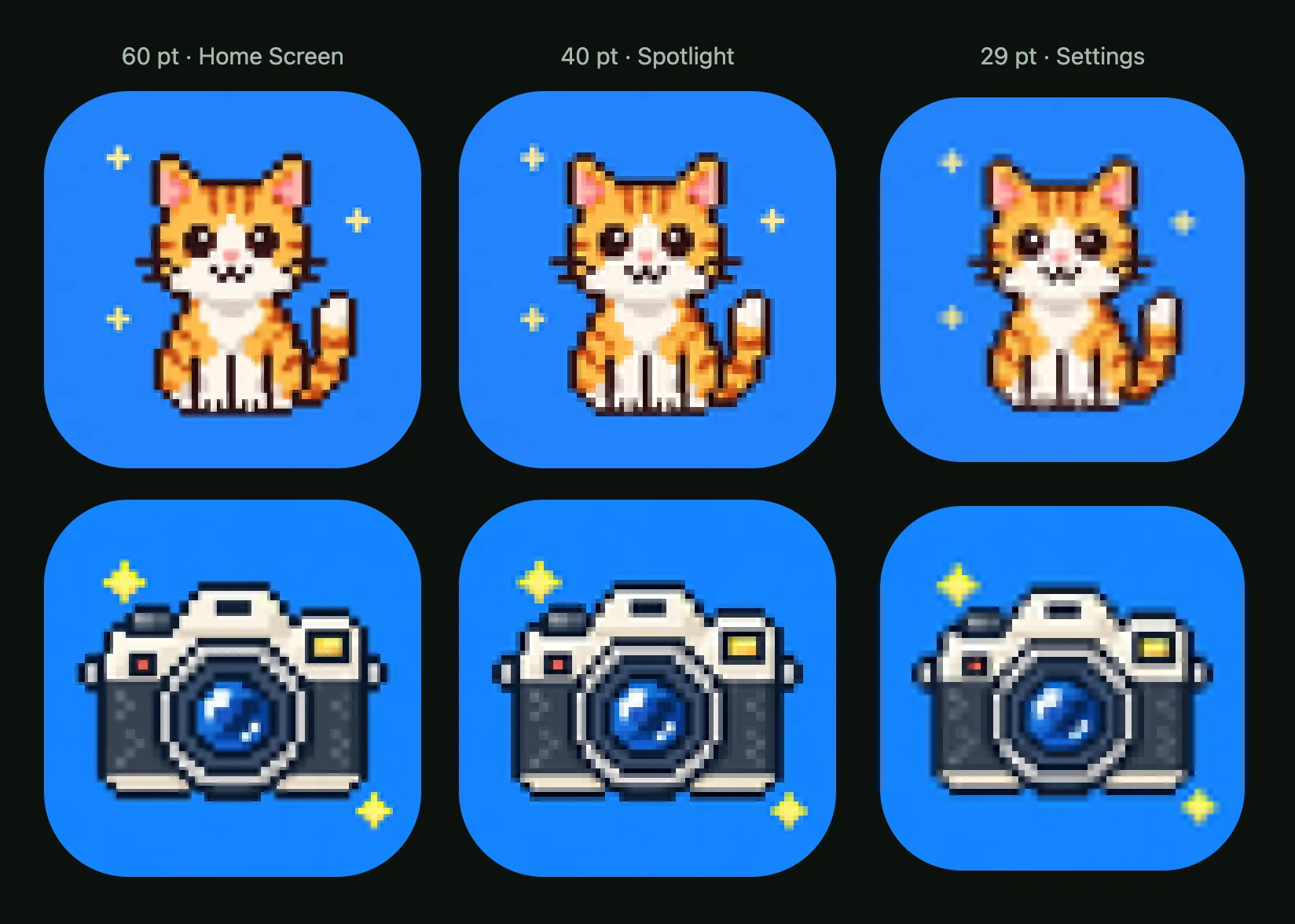
The pixel art examples here stay recognisable when small, but their stair-steps blur. In AI Icon Creator's real-size check, we shrank the four examples to the iPhone's Home Screen (60 pt), Spotlight (40 pt) and Settings (29 pt) sizes. The steps were crisp at 60 pt, softer at 40 pt and blurred at 29 pt, and one-block details like the cat's whiskers and the sparkles faded. More in our small-size legibility guide.
Is pixel art a good style for my app's icon?
Pixel art is a good fit for games, retro tools and playful utilities, because blocky shapes tell people at a glance that an app has an old-school, game-like spirit. It is a weaker fit for apps that want to feel calm or formal, such as banking. If you are unsure, read how to choose an app icon style before you commit.
Related styles

Further reading
- Game App Icon Design: What Works, With Data From the Top 100Game app icon design: what the top 100 US free games show, how game icons differ from app icons, four icon ideas by genre, and how to test your own.
- How to Keep an App Icon Legible at Small SizesHow to keep an app icon legible at small sizes: where icons shrink to 20–40 px, three quick tests, and fixes for thin lines, narrow gaps, detail and contrast.
- Icon Styles Explained: Types of Icons, with ExamplesA visual guide to icon styles: line, filled, duotone, flat, gradient, 3D, glass, metal and mascot icons, when to use each, and the icon style trends for 2026.
- How to Choose an App Icon Style: Flat, 3D, Glass or Mascot?How to choose an app icon style: which of flat, soft 3D, glass, metal or character icons fits your app, audience and category, with side-by-side examples.