

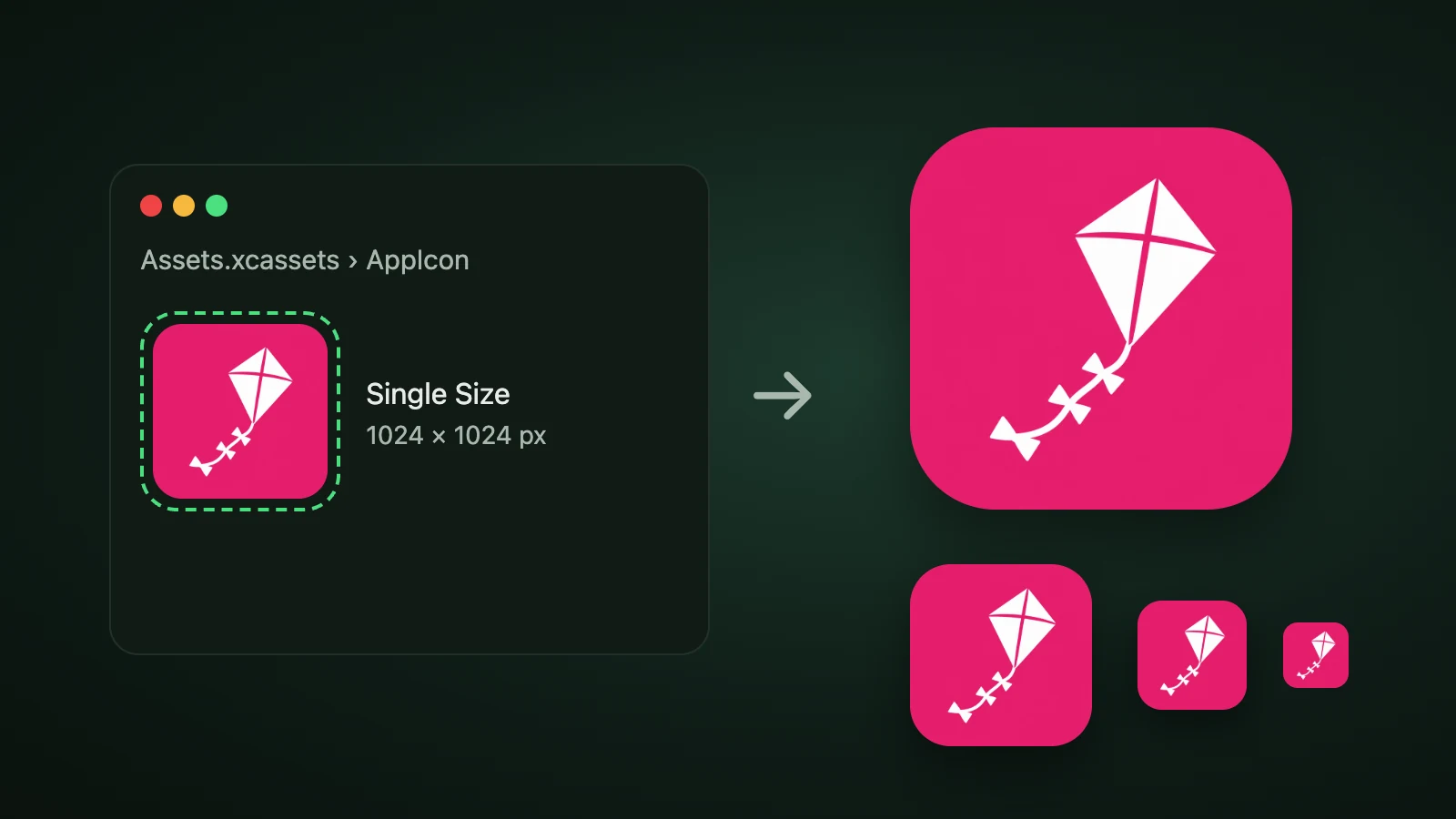
To add an app icon in Xcode, open your project's asset catalog (Assets.xcassets), select the AppIcon set, and drag a 1024 × 1024 px image into it. For iOS, iPadOS and watchOS, Xcode can generate every other size from that one image, which is the default for new apps. Or build a layered icon in Apple's Icon Composer and add the file to the project, where it replaces the asset catalog icon. Either way, you upload the build to App Store Connect, and changing a published icon means a new version.
We didn't run Xcode for this guide, because only the command line tools are installed on the machine we used. The steps come from Apple's Xcode documentation and App Store Connect help. The Contents.json comparison comes from real runs of two tools and from the code of two others.
How do you add an app icon in Xcode?
To add an app icon in Xcode, select the asset catalog in the Project navigator, add or open an App Icon set, choose Single Size or All Sizes, and drag your images into the wells. Apple's documentation on configuring your app icon using an asset catalog describes these steps.

- Make a 1024 × 1024 px PNG. A full square with no rounded corners. Our app icon sizes guide lists the rules for each platform.
- Open the asset catalog. In the Project navigator, select
Assets.xcassets. Projects created from a template already have anAppIconset. To add one, click the Add button (+) at the bottom of the outline view and choose OS variant, then App Icon. - Choose Single Size or All Sizes. Open the Attributes inspector from the View menu, and pick the option for each platform you support.
- Drag your image into the well. For a single-size icon there is one well.
- Build and run, look at the icon on a device, and upload the build to App Store Connect.
Single Size or All Sizes?
Single Size means you give Xcode one 1024 × 1024 px image and it generates every other size, while All Sizes means you provide each size yourself. According to Apple's documentation, iOS, iPadOS and watchOS apps can auto-generate all icon variations from a single 1024 × 1024 px image, and this is the default when you create a new app or a new icon in the asset catalog. Apple suggests providing individual assets only when you want to customise variants, for example to show more detail at a larger size.

Other platforms differ:
- macOS: you supply an asset for each size, as our sizes guide lists.
- visionOS: the icon is a stack of image layers, three at most.
- tvOS: the icon is a stack of layers, up to five, which you can import as Layer Source Representation files.
What is inside AppIcon.appiconset?
An AppIcon.appiconset folder holds your image files and a Contents.json file that tells Xcode which image is which. For a single-size iOS icon, the Contents.json has one entry with the universal idiom, the ios platform and the size 1024x1024.

In AI Icon Creator's runs, Capacitor Assets 3.0.5 and expo prebuild on Expo SDK 57.0.26 each wrote one 1024 px image and a Contents.json with that single entry. Their file names differ (AppIcon-512@2x.png and App-Icon-1024x1024@1x.png), and so does the icon pack's (AppIcon-1024.png, from the pack's code). The file name doesn't matter as long as Contents.json points to it. The Flutter package flutter_launcher_icons takes the other route: its code lists 17 images across 11 configurations from 20 to 1024 points, the All Sizes layout. Our guides to Ionic app icons, Expo app icons and Flutter app icons show those tools.
How do you add dark and tinted icons?
iOS and iPadOS support three looks for an app icon: Light, Dark and Tinted. To add them in the asset catalog, select Single Size for iOS, then choose Any, Dark or Tinted from the Appearance pop-up menu. Two more image wells appear, and you drag your dark and tinted icons into them.
Apple's documentation gives two rules: provide the tinted icon as a greyscale image, and provide the dark icon with a transparent background so the system-provided background shows through. You can also skip your own versions and let the system generate them, an automatic treatment that Apple says preserves your design intent and legibility. Our guide to app icon colours shows what dark and tinted modes do to your colours.
What about an Icon Composer file?
If you make your icon in Icon Composer, you add its file to the project instead of using the asset catalog. Apple's documentation says the file represents your icon across iOS, iPadOS, macOS, watchOS and the App Store, and that adding it to your Xcode project replaces any existing icon asset catalog. In the target's General tab, under App Icons and Launch Screen, the App Icon name must match the file name without its extension.
For earlier OS releases without the Liquid Glass material, Xcode generates similar-looking icon images from the file at build time. If you want your existing icon to appear in those releases, Apple says to keep using asset catalogs. Our Icon Composer guide covers how to prepare the layers.
| Asset catalog | Icon Composer file | |
|---|---|---|
| What you add | Image files in an App Icon set | One .icon file |
| Dark and tinted | Extra images, or generated by the system | Set up inside the file |
| Older OS releases | Your images are used | Xcode generates images at build time |
| Best for | A flat 1024 px image and full control of older releases | Layered Liquid Glass icons |
Where does the App Store icon go?
The App Store icon is the same 1024 px image, and Xcode keeps a well for it in the icon set. Apple's documentation lists where each platform's App Store icon goes:
| Platform | App Store icon location |
|---|---|
| iOS | The iOS 1,024 pt image well |
| iMessage | The iOS 1,024 pt well in the AppIcon set, and the Messages App Store well in the iMessage App Icon set of the extension target |
| macOS | The App Store 2x image well |
| watchOS | The iOS 1,024 pt well of the iOS target, and the watchOS well of the WatchKit app target |
| tvOS and visionOS | The layers of the icon stack; the App Store generates the icon from them |
After adding the icons, upload the build to App Store Connect. Apple's help page says that if you want to change your app icon after publishing, you must create and upload a new version of your app and submit it for review.
Which build settings control the icon?
Three settings control which icon set Xcode uses. In the target's General tab, under App Icons and Launch Screen, the App Icons Source pop-up menu chooses the icon set, and the Include all app icon assets option decides whether other sets are bundled. If you leave it off, Xcode only includes the set you chose, which lets you use a different icon for Debug and Release builds by changing the Primary App Icon Set Name build setting. Any extra sets your app can select, or that you use in App Store product pages, go in the Alternate App Icon Sets build setting.
Common Xcode app icon mistakes
- A rounded or transparent 1024 px icon. Give Xcode a full, opaque square, and let the system apply the mask. Our guide to app icon design principles explains why.
- A dark icon with a solid background. Apple asks for a transparent background so the system's own can show through.
- A colour tinted icon. The tinted icon should be greyscale.
- A mismatched name. With an Icon Composer file, the App Icon name in the target must match the file name.
- Expecting a live change. A published icon changes only with a new version.
How do you make the 1024 px icon?
To make the 1024 px icon for Xcode, generate one simple subject, pick a style that stays clear at 32 px, and export it at 1024 px. Our step-by-step guide on how to make an app icon covers the process. In AI Icon Creator you can compare a few styles of the same subject, and the app icon pack includes an ios/AppIcon.appiconset folder with the image and its Contents.json.
Frequently asked questions
How do I add an app icon in Xcode?
To add an app icon in Xcode, select Assets.xcassets in the Project navigator, open or add an App Icon set, choose Single Size in the Attributes inspector, and drag a 1024 × 1024 px PNG into the well. Xcode generates the other sizes. You can also add an Icon Composer file, which replaces the asset catalog icon.
What size should an Xcode app icon be?
An Xcode app icon should be 1024 × 1024 px for iOS, iPadOS and watchOS single-size icons, according to Apple's documentation, and Xcode generates the smaller sizes. macOS needs an asset for each size. The image should be a full square with no rounded corners, because the system applies its own mask.
How do I add a dark mode app icon in Xcode?
To add a dark mode app icon in Xcode, select Single Size for iOS in the Attributes inspector, choose Dark from the Appearance pop-up menu, and drag your dark icon into the new well. Apple says to use a transparent background so the system-provided background shows through, and to provide the tinted icon in greyscale.
Do I need Icon Composer to set an app icon in Xcode?
You don't need Icon Composer to set an app icon in Xcode, because a single 1024 px image in the asset catalog works and Xcode generates the other sizes. Use Icon Composer when you want a layered Liquid Glass icon. Adding an Icon Composer file to the project replaces the asset catalog icon.
How do I make an Xcode app icon with AI?
To make an Xcode app icon with AI, describe one simple subject for your app, generate it in a few styles, choose the one that stays clearest at 32 px and export it at 1024 px. In AI Icon Creator you can compare styles side by side and download an icon pack with an Xcode-ready icon set folder.
Ready to make your icon?