
The design assistant is a short chat that suggests what your app icon could show and which styles to try. You describe your app, pick one of its subject ideas and up to three styles, and the studio makes one icon for each style. Chatting is free; the icons it starts use credits like any other generation, and the button shows the cost before you click.
Where to find the design assistant
Look for Not sure what to draw? Ask the design assistant in the icon creator on the home page, under the box where you describe your icon. If you are signed in, the same link sits at the top of the studio, above the description box. It appears a moment after the page loads.
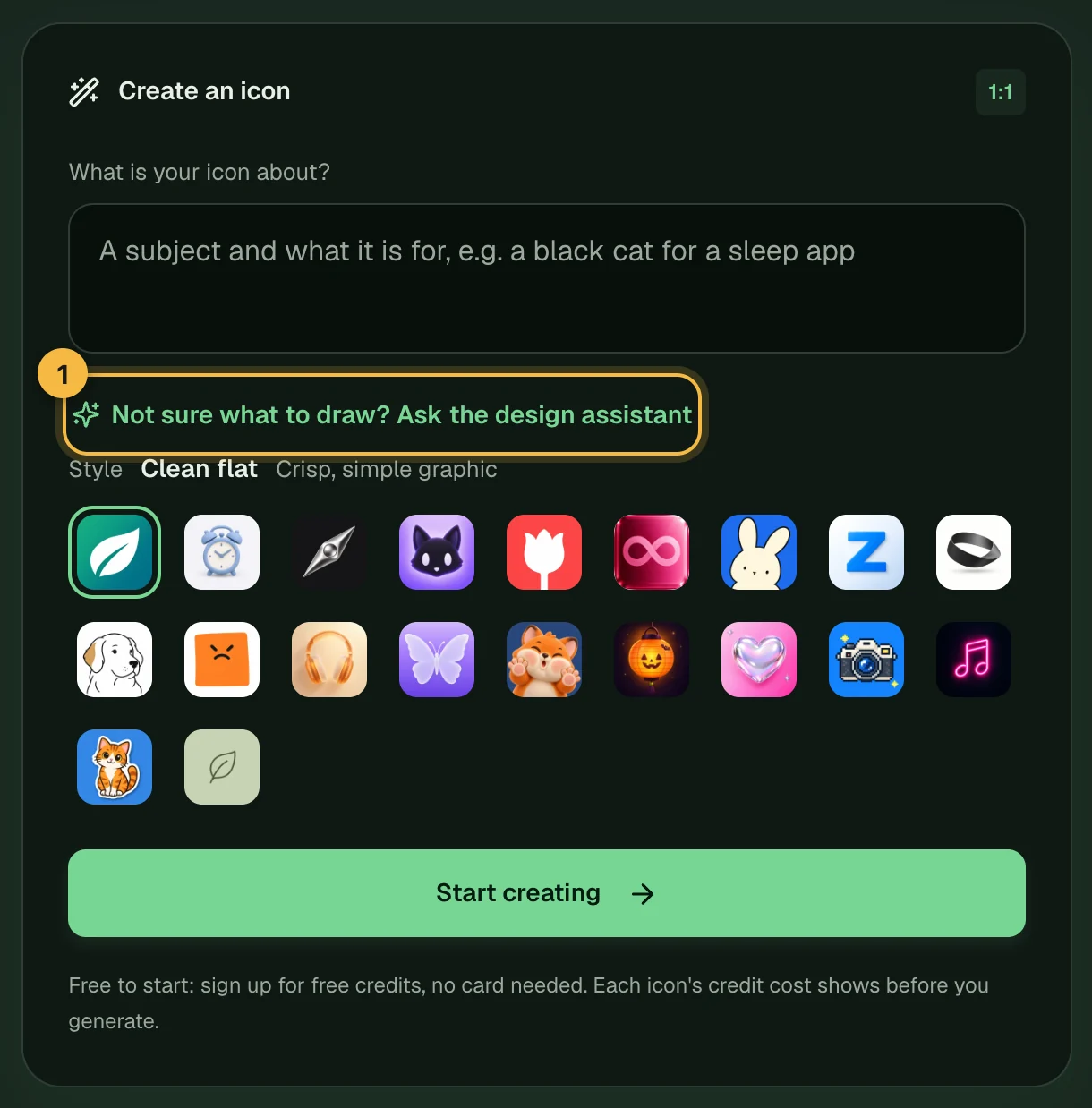
How to use the design assistant
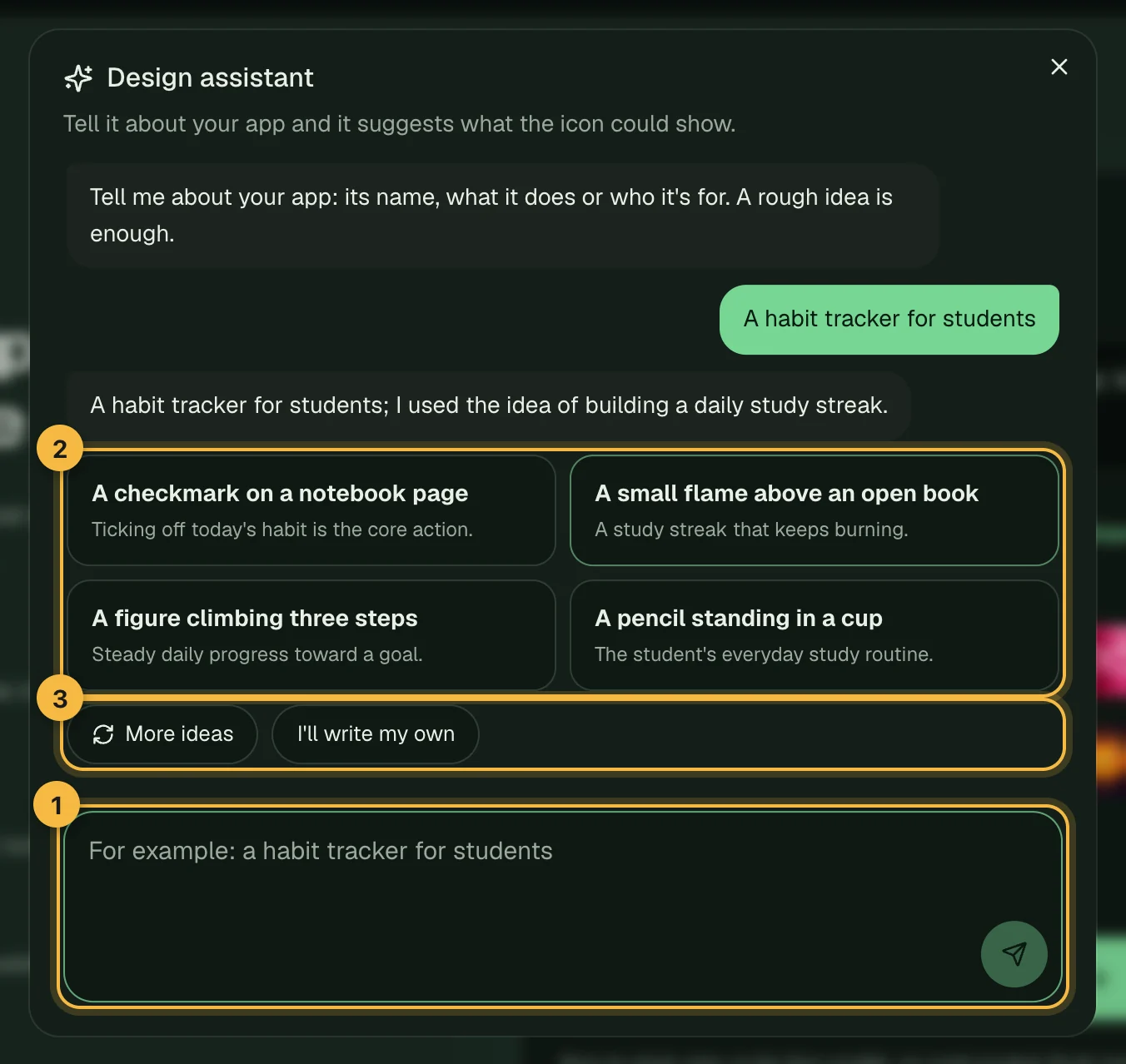
- Tell it about your app. Write its name, what it does or who it is for. A rough idea is enough, such as "a habit tracker for students". Press Enter to send and Shift+Enter for a new line. Signed-in users can also attach one screenshot or sketch (PNG, JPG or WebP) to a message.
- Pick a subject. The assistant answers with three or four ideas for what the icon could show, each with a one-line reason. Pick the one you like. If none fits, choose More ideas for a fresh set, or I'll write my own to describe the icon yourself. If your description is too vague, the assistant asks one question first and offers a few quick answers to tap.
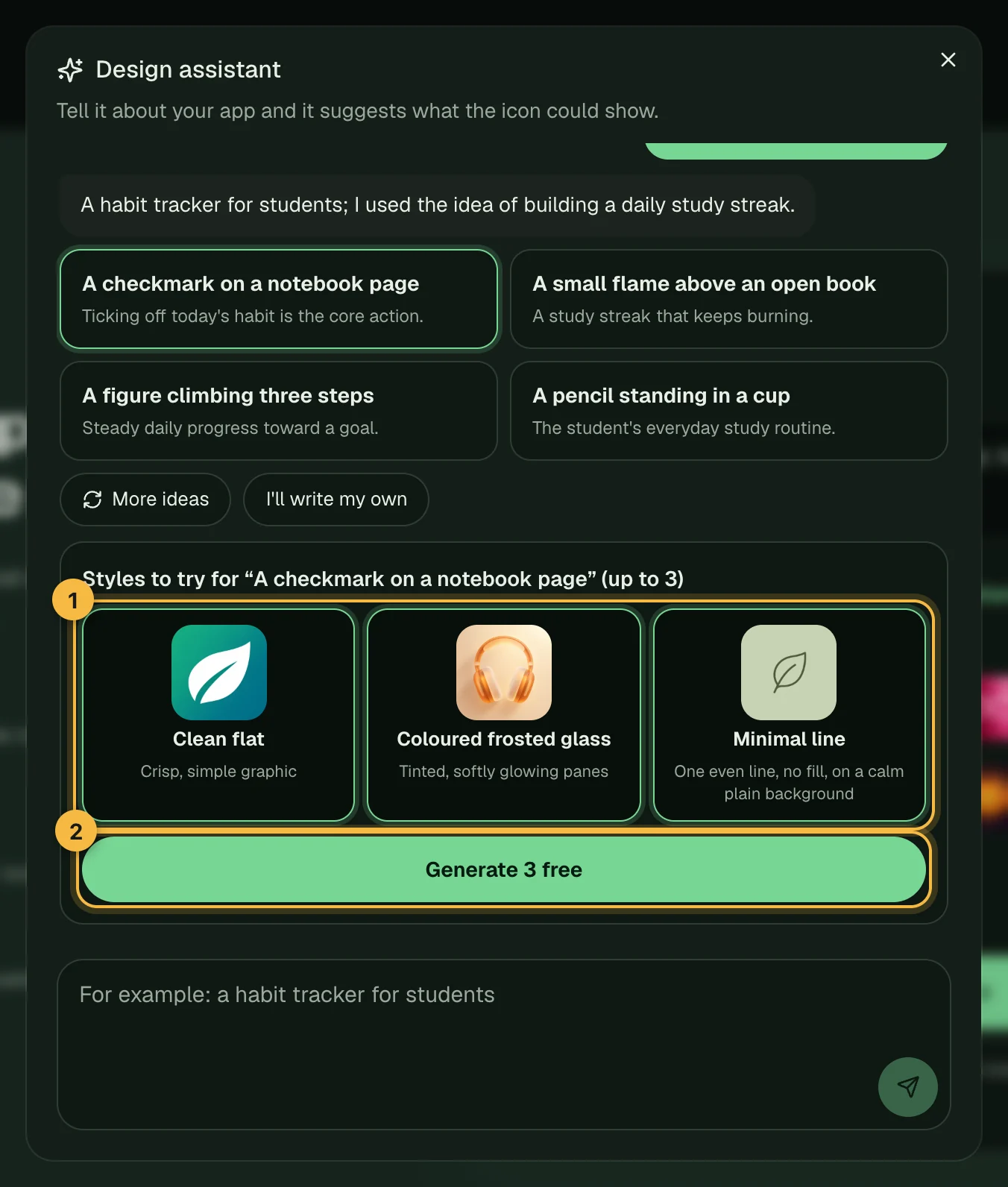
- Pick up to three styles. The assistant suggests three styles for your subject, based on your kind of app and any mood or look words you used. The first one is ticked. Tick up to three: each one becomes its own icon.
- Press Generate. The button shows how many icons it will make. When you are signed in, it also shows what they cost. As a guest you see Generate N free and are asked to sign up first; the sign-up credits are free, and your icons start as soon as you are in.
What happens after you press Generate
The chat closes and the studio opens with your subject filled in. It starts one icon for each style you ticked, all with the same subject. Each takes a few minutes, and you can keep working while they draw. Finished icons appear under This session and are saved to My icons automatically.
If your balance is too low, nothing starts on its own. Your subject and styles stay in the studio, and pressing Generate icon shows how to get more credits. The studio also draws up to four icons at a time, so wait for running icons to finish before you start more.
Once the icons are ready, compare them, edit one area of the one you like, or download it with download and export.
What it costs
Chatting with the design assistant uses no credits. Generating the icons is a normal studio generation: every icon uses credits, the cost is shown before you click, and an icon that fails is refunded automatically. For balances, expiry and plans, see how credits work and the pricing page.
What the design assistant will and won't do
- It only helps with what to draw. Questions about anything else get a short nudge back to what your app does.
- Its suggestions are simple pictures. They avoid words, and they avoid other companies' logos and product names.
- It can refuse a message. If a message breaks our Acceptable Use Policy, you see "I can't help with that. Try a different idea for your app." Change the idea and try again.
- There are limits. A chat lasts a few rounds, and there is a daily limit on replies. When you reach one, you can still describe your icon in the studio box yourself.
Tips for better suggestions
- Say who the app is for and the mood. "A meditation app for busy parents, calm and warm" gives better ideas than "a meditation app".
- Use look words if you have a look in mind. Words such as "friendly", "premium" or "playful", or a look such as "flat", can steer the style suggestions.
- Ask for a seasonal look if you want one. Seasonal styles are only suggested when you ask for them.
- Try a screenshot or a sketch. Signed-in users can attach one to show the assistant what your app looks like.
- Don't like the ideas? Choose More ideas, or pick the nearest subject and change the style in the studio. How to write a prompt for an AI app icon has tips for writing your own.
Frequently asked questions
Does the design assistant cost credits?
No. Chatting with the design assistant is free. Only the icons you generate from its suggestions use credits, and the Generate button shows the cost before you click.
Can I use the design assistant without an account?
Yes. You can chat as a guest and pick a subject and styles. To generate the icons you sign up first. Sign-up includes free credits, and the icons you chose start as soon as you are in.
Can I change the style after the icons are made?
Yes. Open the studio and generate the same subject in another style, or edit one area of an icon you already have. Each edit is saved as a new version, so the original stays.
Which styles does the design assistant suggest?
It suggests styles that are live today, based on your kind of app, its mood and any look words you typed. The icon styles guide shows what each style looks like.
Can I skip the ideas and write my own subject?
Yes. Choose I'll write my own, or close the chat and describe your icon in the studio box. One subject and one key detail work best.
Did not find an answer?
Open a ticket and tell us what happened. We will reply as soon as we can.