
Icon style
Christmas app icons
30 free credits on sign-up (about 3 icons) · no card needed
Christmas app icons are festive icons for an app or an iPhone Home Screen: one object, such as a gift box, a bell or a mug of hot cocoa, with winter touches such as holly and snowflakes. Describe your subject in a few words and AI Icon Creator draws it in one of two looks: glossy Cozy ornament or soft, stitched Handmade felt.
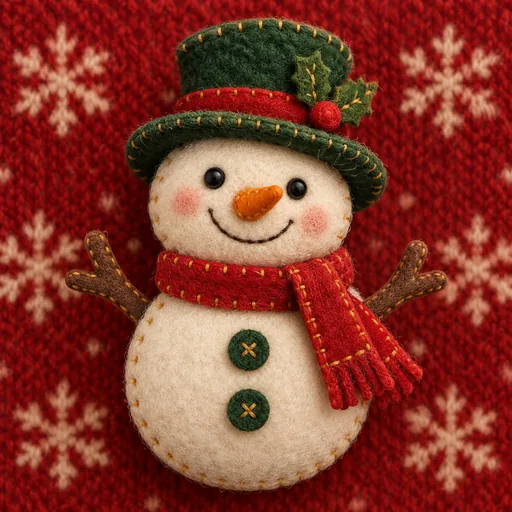
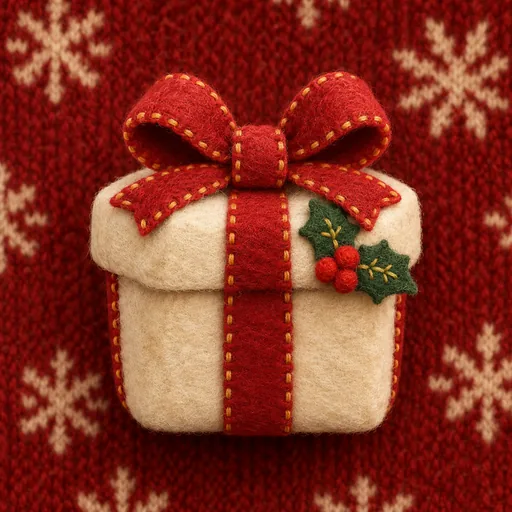
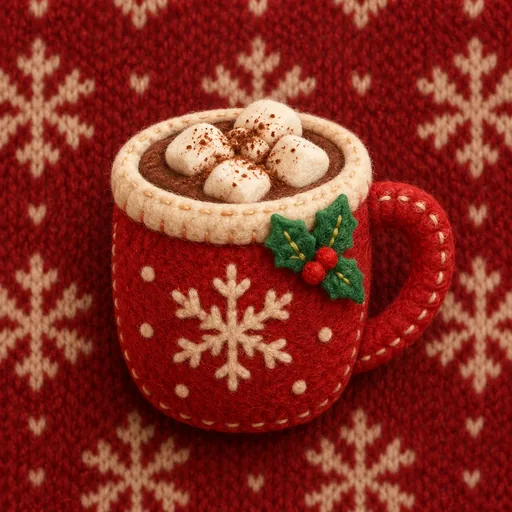
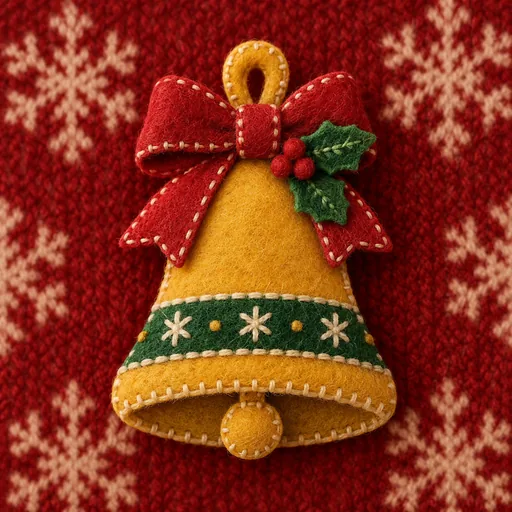
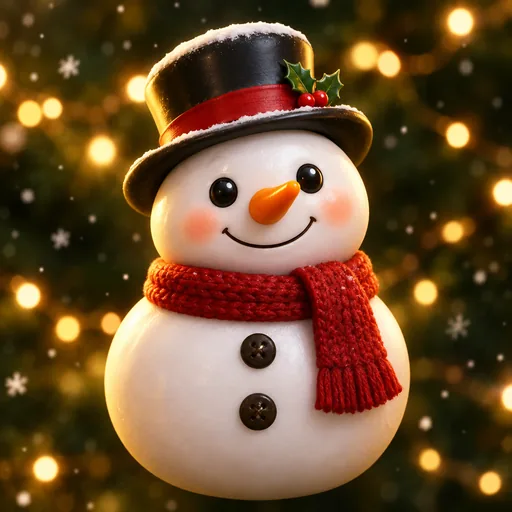
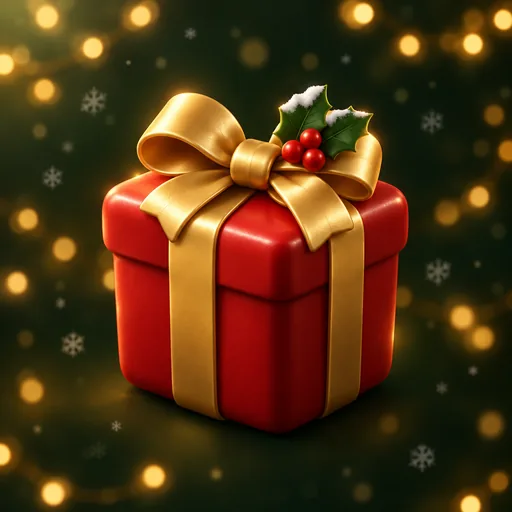
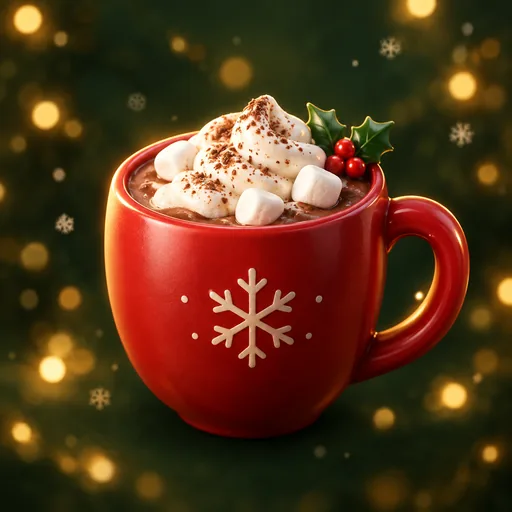
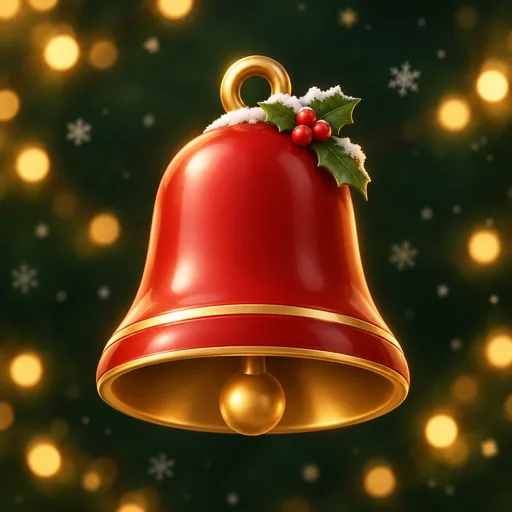
Both looks draw the same four subjects in the examples below: a snowman, a gift box, a mug of hot cocoa and a bell. Each has a sprig of holly with red berries. Cozy ornament draws them smooth and shiny, mostly in red, white and gold, on deep green with soft golden lights and tiny snowflakes. Handmade felt draws them as soft felt shapes with dotted stitching along the edges, on a red knitted background with cream snowflakes. None of the eight has lettering on it.
Use icons like these to restyle an iPhone Home Screen for the holidays, or as a seasonal alternate icon for a holiday campaign, a shopping app or a greeting app. Start with one object that has a clear outline, such as the bell or the gift box. Before you settle on one, run the three quick checks in our guide to keeping an icon legible at small sizes.
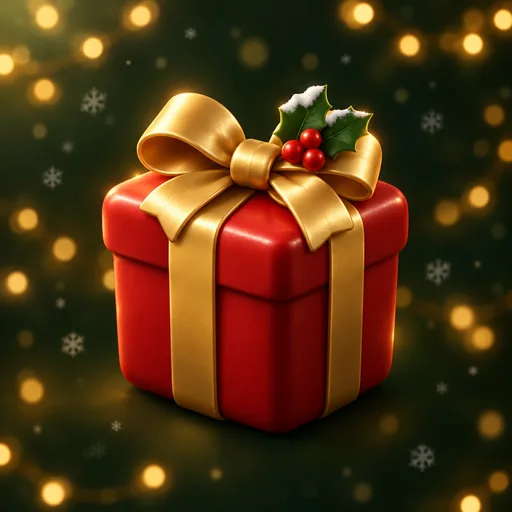
Christmas icon examples: snowman, gift box, hot cocoa, bell
Every example was made with this style. Click one to start with the same look.
How to make Christmas app icons with AI
The style takes only a subject: you choose what to draw, then check that it still reads when small. Three steps get you from a few words to a file you can use, a PNG or an app icon pack.
- 01
Describe one subject
Describe one object and one detail that changes its outline, like “a gift box with a big bow”, “a mug of hot cocoa with marshmallows” or “a snowman in a top hat”. The studio's suggested subject for this style is “a gift box”. Leave colours and backgrounds to the style, and keep busy scenes out, because they turn to noise when small (how to describe a subject has more tips).
- 02
Pick a look
Choose Cozy ornament, the default, for a glossy finish, or Handmade felt for a soft, stitched one. The two draw the same subject differently: in the examples the felt bell is yellow and the Cozy ornament bell is red. Try your subject in both and keep the one that suits your app.
- 03
Check it small, then download
Use Check at real sizes before you download, and look at the smallest size first: if the main shape reads there, it will read larger too. If a bow or a hat looks wrong, use Adjust this icon to change only that part; the edit is saved as a new version and the original stays. Then download the PNG, or the app icon pack if you plan to ship, which has every size iOS, Android and the web need (how to download and export).
Christmas app icons: common questions
What are Christmas app icons?
Christmas app icons are the small pictures that stand for an app, restyled for the holidays with winter touches such as holly, snowflakes and gift ribbons. AI Icon Creator turns a few words about one object, such as a bell or a snowman, into one finished icon in a Cozy ornament or Handmade felt look. It makes a new icon for your own app rather than offering ready-made ones to browse.
What are the icons of Christmas?
The icons of Christmas that this style draws are winter and holiday objects: holly with red berries, snowflakes, a gift box with a ribbon and bow, a bell, a snowman in a scarf and a mug of hot cocoa. Red and green run through all eight examples. In Cozy ornament the gold shows in the bell's rim, the gift ribbon and the soft lights.
Which Christmas look should I pick: Cozy ornament or Handmade felt?
Pick Cozy ornament for a glossy, polished look and Handmade felt for a soft, hand-stitched one. In the examples, Cozy ornament draws smooth, shiny objects on deep green with golden lights, a polished look that can suit shopping and gift apps. Handmade felt draws felt shapes with dotted stitching on a red knit, a homemade look that can suit greeting and family apps. Either look can draw the same subject, so test both if you are unsure.
Which subjects work for a Christmas app icon?
The best subject for a Christmas app icon is one object with a clear outline. The examples use a snowman, a gift box, a mug of hot cocoa and a bell, each drawn large and centred. Skip scenes with many parts, because a bold shape like the bell stays clear when it is small and fine detail does not. A detail that changes the outline, such as a bow or a hat, is worth adding.
Do Christmas icons stay readable at small sizes?
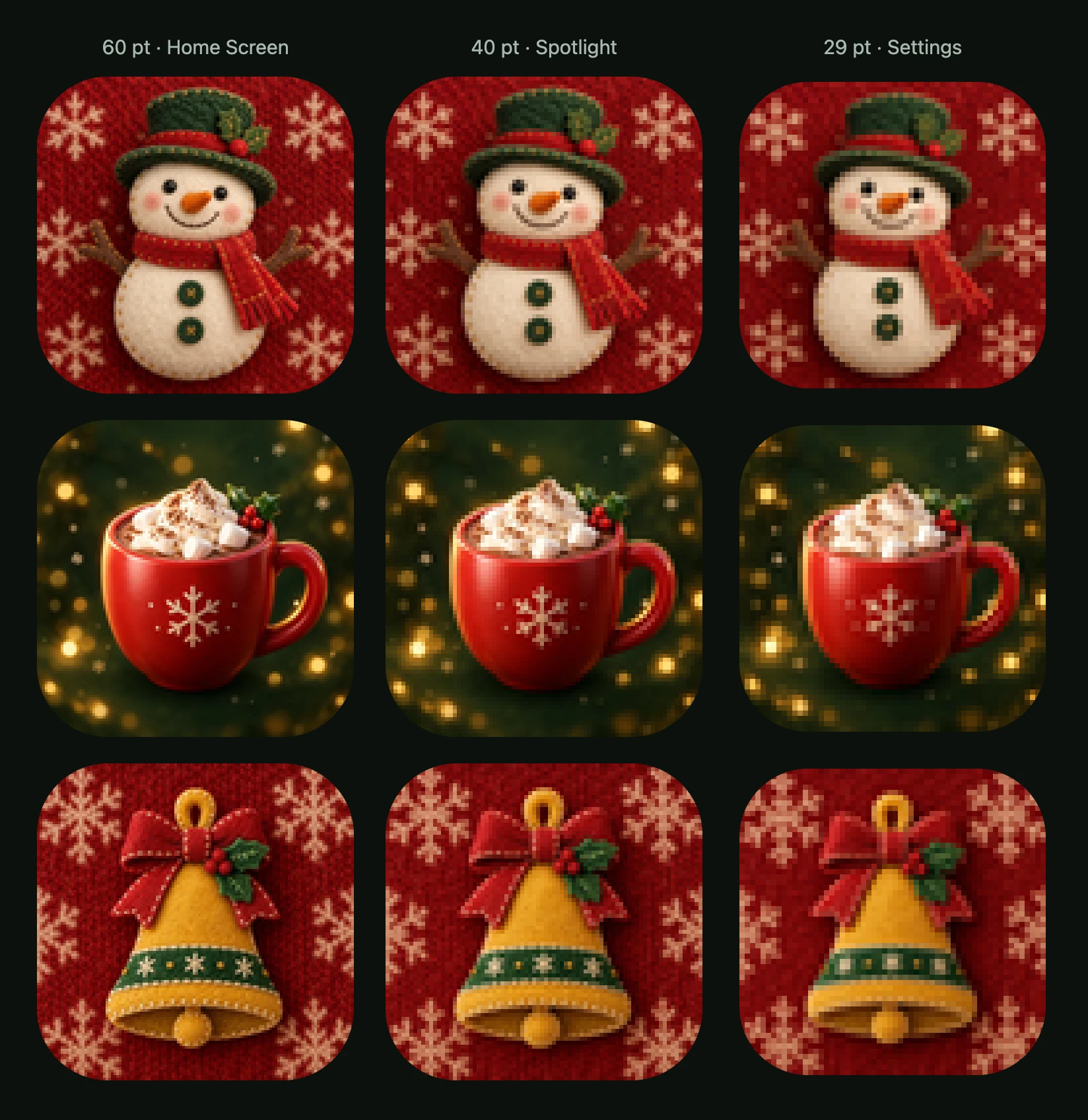
Yes, Christmas icons stay recognisable at 29 pt, but fine detail fades. In AI Icon Creator's real-size check, we shrank the eight approved Christmas icons to 60, 40 and 29 pt (Home Screen, Spotlight and Settings on an iPhone). The snowman, gift box, mug and bell held in both looks. By 29 pt the felt stitching had blurred away, holly berries were a few red pixels, and Cozy ornament's snowflakes and lights had become specks and squares.
How do I make Christmas icons for my iPhone?
You can make Christmas icons for your iPhone by creating one icon per app in the same look and adding each to the Home Screen as a shortcut that opens the app. In Apple's Shortcuts guide, you open the shortcut's Details, tap Add to Home Screen, then tap the icon in the Name and Icon area and pick your downloaded icon with Choose Photo or Choose File. Tap Add to finish.
Can I change my app's icon for Christmas?
You can change your app's icon for Christmas with an alternate app icon on iOS. In Apple's Xcode documentation, people pick the icon in your app, your app calls setAlternateIconName with its name and the system shows an alert; passing nil brings the primary icon back after the season. In Apple's sample project, each alternate icon is an Icon Composer file (see our Icon Composer guide). Guideline 2.3.8 of the App Review Guidelines asks that alternate icons stay similar to your main icon.
Is there a free Christmas icon maker?
Yes, AI Icon Creator works as a Christmas icon maker, and it is free to start: sign up for free credits, no card needed, and each icon's credit cost shows before you generate. Pick a look, describe one subject and download the result: the PNG and the app icon pack are always free. How credits work covers which actions use credits.
Related styles

Further reading
- How to Keep an App Icon Legible at Small SizesHow to keep an app icon legible at small sizes: where icons shrink to 20–40 px, three quick tests, and fixes for thin lines, narrow gaps, detail and contrast.
- App Icon Colours: How to Choose Colours That Stand OutHow to choose app icon colours: brand, category, contrast and wallpaper tests, gradients, and what dark and tinted modes do, with data from an 8-colour test.
- App Icon Sizes 2026: iOS, Android and Web Size ChartEvery app icon size you need in 2026 for iOS, Android, Google Play and the web, plus safe zones, masks, common mistakes and a checklist before you submit.
- Icon Styles Explained: Types of Icons, with ExamplesA visual guide to icon styles: line, filled, duotone, flat, gradient, 3D, glass, metal and mascot icons, when to use each, and the icon style trends for 2026.